

What Is M Meal Mate?
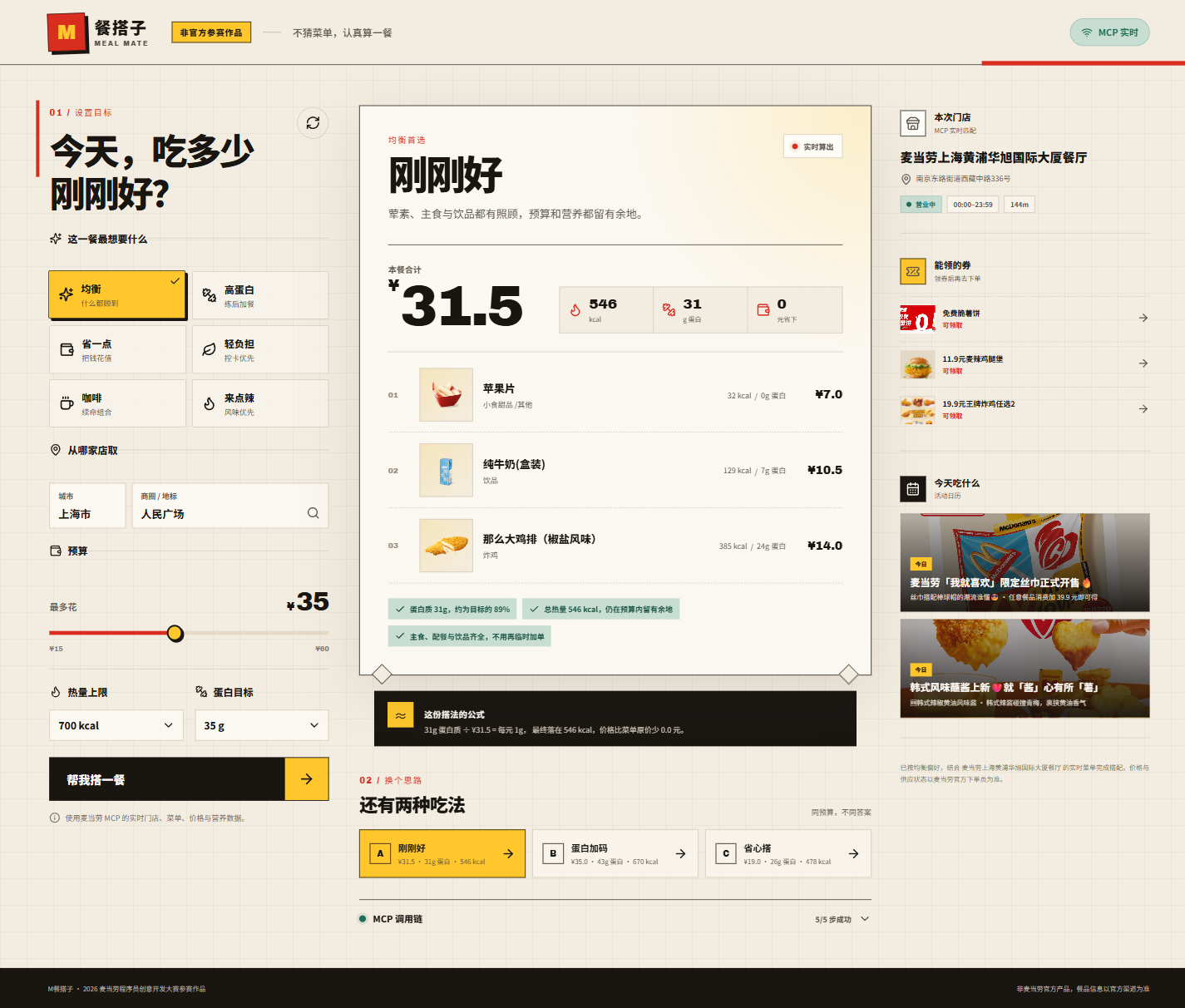
M Meal Mate is an intelligent meal-planning Skill powered by McDonald's MCP data. Simply enter a city, landmark, budget, calorie limit, and protein target. It will find nearby pickup locations, align the current menu with nutrition data, and output three actionable meal combinations.
Unlike tools that recommend only individual items, M Meal Mate displays each combination's price, calories, protein, budget usage, remaining calories, and recommendation rationale. It also lets users expand the MCP call chain to view the status and duration of each Tool.
The project participated in the 2026 McDonald's Programmer Creative Development Competition, but it is not an official McDonald's product. Item availability, prices, and promotions are subject to the actual information provided through official McDonald's channels. The output does not constitute professional medical or nutritional advice.
What Problem Does the Project Solve?
Ordering food is often difficult not because there are too few options, but because menus, nutrition information, promotions, and personal goals are scattered across different places. Users may need to control both budget and calories, increase their protein intake, and determine whether the final combination is complete.
M Meal Mate first lets users define the boundaries for their meal, then calculates results from the real menu instead of asking users to choose specific items in advance. It integrates menu prices, nutrition data, and promotion information into one workspace, making the recommendation process easier to understand and verify.
Core Capabilities
- Real-time store lookup: Uses
query-nearby-storesto find nearby pickup locations by city and landmark. - Real-time menu retrieval: Uses
query-mealsto obtain current store prices, original prices, product images, and tags. - Nutrition matching: Uses
list-nutrition-foodsto match menu items with calorie and protein data. - Three meal combinations: Returns “Balanced Pick,” “Protein Boost,” and “Easy Choice” options, avoiding a single black-box answer.
- Explainable metrics: Shows protein per yuan, budget usage, remaining calories, and the value of promotions.
- Promotions and campaigns: Calls
available-couponsandcampaign-calendarto present available coupons and upcoming campaigns in one place. - Traceable calls: Lets users view the status and duration of MCP Tool calls.
- Safe fallback: When no Token is configured or a Tool is temporarily unavailable, the system uses clearly labeled, anonymized demo snapshots.
Prerequisites
The real-time MCP version requires running the Node service included in the repository locally. Before getting started, prepare the following:
- Node.js 20 or later
- npm 10 or later
- A McDonald's MCP Token; this is optional if you only want to try the demo data
If you do not want to install it yet, you can visit the GitHub Pages online demo. This version is a frontend-only demo that supports complete condition adjustment and meal calculations, but uses an anonymized menu snapshot instead of real-time MCP data.
Installation and Configuration
Step 1: Clone and Install Dependencies
Run the following commands in a terminal. Replace the repository URL placeholder with the actual address:
git clone <your-repository-url>
cd mcd-meal-mate
npm install
cp .env.example .env
Step 2: Configure Environment Variables
Open the .env file in the project root and enter the MCP Token and service port:
MCD_MCP_TOKEN=YOUR_MCD_MCP_TOKEN
PORT=8787MCD_MCP_TOKENis optional. When configured, it enables real-time MCP; otherwise, demo data is used.PORTis optional and defaults to8787.
The MCP Token should only be stored in server-side environment variables. Do not put it in frontend code or commit it to a public repository.
Step 3: Start the Development Environment
npm run devAfter startup, visit http://localhost:5173 in your browser. The development command runs the Express API and enables Vite hot updates, making it suitable for debugging the interface and server-side logic.
Demo Mode Without a Token
If you do not have a McDonald's MCP Token, you can build and start the production version:
npm install
npm run build
npm start
Then visit http://localhost:8787. The page will clearly display “Demo Data,” and its menu, prices, and campaigns will come from an anonymized snapshot.
Demo mode is suitable for checking interaction flows, input constraints, and the three meal combinations, but it does not represent real-time availability, prices, or campaigns at the current store. For actual use, rely on the data returned for the target store.
Basic Usage: Generate Three Meal Plans
Step 1: Choose Preferences
After entering the workspace, you can first choose a preference such as “Balanced.” Preferences affect combination scoring, but the results remain subject to budget, calorie, and protein constraints.
Step 2: Enter Meal Conditions
You can start with the following example conditions:
City: Shanghai
Business district / landmark: People's Square
Budget: 35 yuan
Calorie limit: 700 kcal
Protein target: 35 g
Step 3: Review the Calculated Results
The server will find nearby stores, retrieve menu and nutrition data, and return three types of plans:
- Plan A: Balanced Pick. Provides a main item plus a snack or drink within the budget and calorie limits, while displaying protein, protein per yuan, and the recommendation rationale.
- Plan B: Protein Boost. Prioritizes increasing protein while staying as close as possible to the budget and calorie limits.
- Plan C: Easy Choice. Provides a lower-cost but still complete combination for situations where cost and selection efficiency matter more.
When comparing plans, do not look only at total protein. Also consider protein per yuan, remaining budget, remaining calories, and promotion savings to determine which result best fits your current needs.
Step 4: Inspect the MCP Call Chain
Expand “MCP Call Chain” to see the status and duration of Tools for stores, menus, nutrition, coupons, and campaigns. This helps determine whether the recommendation is based on real-time returned data or switched to a demo snapshot because the Token was missing or a Tool was unavailable.
Common Development Commands
npm run dev: Starts the Express API and Vite hot updates.npm run build: Builds the frontend and compiles the server.npm start: Starts the production service.npm test: Runs meal-combination logic and nutrition parsing tests.npm run check: Runs type checking, server compilation checks, and tests in sequence.
After modifying nutrition parsing, menu mapping, or meal-planning rules, run at least:
npm test
npm run check
This helps detect type errors, compilation problems, and regressions in combination constraints or nutrition parsing early.
Deploy with Docker
The project supports Docker builds. First, create the image:
docker build -t mcd-meal-mate .Then map the local 8787 port to the container and pass the Token through an environment variable:
docker run --rm -p 8787:8787 \
  -e MCD_MCP_TOKEN="YOUR_MCD_MCP_TOKEN" \
  mcd-meal-mate
After the container starts, visit http://localhost:8787. If MCD_MCP_TOKEN is omitted, the application will use demo data.
Understanding the Project Structure
The project separates the React frontend, Express service, MCP calls, nutrition parsing, and combination planning into different modules:
src/
  App.tsx          React workspace and responsive interactions
  styles.css       Editorial menu × receipt visual system
server/
  index.ts         Express API, input validation, and static assets
  mcp.ts           MCP JSON-RPC client, Tool orchestration, and fallback
  nutrition.ts     Nutrition text parsing, menu mapping, and item role recognition
  planner.ts       Combination constraints, preference scoring, and three-plan selection
  demo-data.ts     Anonymized demo snapshot
  planner.test.ts  Nutrition and combination tests
shared/
  types.ts         Shared frontend and backend types
server/mcp.ts handles MCP JSON-RPC communication, Tool orchestration, and failure fallback; server/nutrition.ts maps nutrition text to menu items; server/planner.ts applies combination constraints, preference scoring, and three-plan selection. Shared frontend and backend data structures are located in shared/types.ts.
The backend uses native fetch to communicate with McDonald's MCP Streamable HTTP Server. In production builds, the same Express process serves both the API and static pages, while caching menu and nutrition results in memory.
Advanced Usage and Development Recommendations
Start by Checking the Constraints
If the expected combination is not returned, first check whether the budget, calorie limit, or protein target is too strict. The meal planner must satisfy multiple boundaries at once, and the goals may conflict. Increasing the budget, raising the calorie limit, or lowering the protein target can help produce more feasible combinations.
Distinguish Real-Time Data from Demo Snapshots
When debugging, check whether the page displays “Demo Data” and inspect the MCP call chain. Without a Token, when a Tool is temporarily unavailable, or when running the pure frontend GitHub Pages version, results may come from an anonymized snapshot.
Protect Server Credentials
Do not inject the Token into the browser. The project already reads environment variables through Express and calls MCP from the server, avoiding exposure of the Token to the frontend by design. When deploying to a server or container, credentials should also be injected through secure environment variable management.
Run Full Checks After Changing Planning Logic
If you modify planner.ts, nutrition.ts, or shared types, run npm run check for type, compilation, and test checks. The project already includes combination and nutrition parsing tests to help verify whether changes affect existing behavior.
Review the Integration Materials
MCP_INTEGRATION.md in the repository documents the complete Tools, call flow, business value, and security boundaries; mcp-config.example.json provides an anonymized configuration example; workbuddy.md contains WorkBuddy integration context and reproducible instructions. When integrating with another Agent or Skill, consult these files first.
Security Boundaries
- The repository contains no real Tokens, passwords, or account credentials.
- The MCP Token is read only from server-side environment variables.
- The project does not call ordering, payment, lottery, or points-redemption Tools.
- The server does not store user input or build user profiles.
- Item availability, prices, and campaigns are subject to official McDonald's channels.
- Recommendations do not constitute medical, nutritional, or other professional advice.
Summary
M Meal Companion brings store lookup, real-time menus, nutrition matching, promotional information, and meal combination planning together in one explainable meal-planning workflow. After configuring an MCP Token, it can use data from the current store; without a Token, you can still experience the complete interaction through a sanitized snapshot.
After installation, you can first use the sample conditions to validate three plans, then confirm the data source through the MCP call chain. Developers can start with mcp.ts, nutrition.ts, and planner.ts to understand how real-time data orchestration, nutrition mapping, and constraint calculations are implemented.