

What Is WonderSnap?
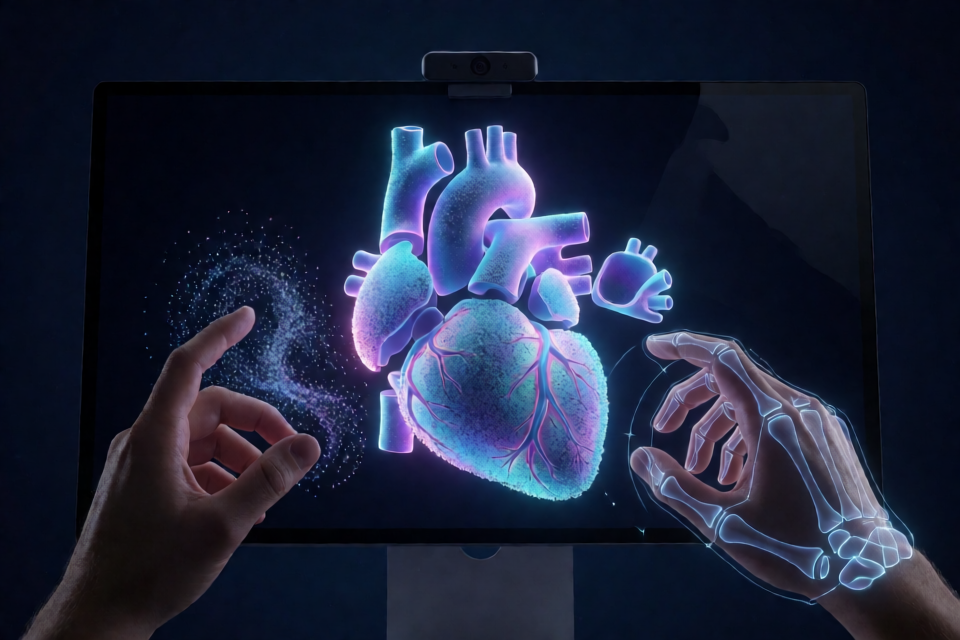
WonderSnap is a browser-based 3D experience that turns procedural models into glowing clouds of up to 250,000 GPU-driven particles. You can snap your fingers to summon particles, form them into landmarks or anatomical structures, rotate models with your hand, and open assemblies into labeled exploded views.
The application combines on-device hand tracking, custom gesture recognition, procedural models, and a hand-written WebGL2 renderer. It does not use Three.js, a game engine, or a frontend framework. Webcam video remains on your machine and is not sent to a server.
A webcam is optional. Every essential interaction is also available through on-screen controls, the keyboard, and the mouse.
Key Features
- GPU particle rendering: Particle physics runs through WebGL2 transform feedback and supports up to 250,000 particles.
- On-device hand tracking: MediaPipe Hand Landmarker tracks as many as two hands with 21 landmarks per hand.
- Gesture recognition: Custom classifiers recognize snapping, fists, open hands, pointing, pinching, peace signs, hand rotation, and two-hand zoom.
- 33 procedural models: The collection covers landmarks, anatomy, biology, engines, vehicles, and machines.
- Interactive parts: Named components can glow, separate into exploded views, display labels, and be pulled out for closer inspection.
- Animated anatomy: The heart beats at 72 bpm, while the lungs breathe on a 4.5-second cycle.
- Educational tools: Quiz mode asks you to identify parts, while description and speech features explain them.
- Voice control: Chrome and Edge can process commands such as show me the heart, zoom in, and quiz.
- Cut-away and recording: You can reveal glowing cross-sections and save the scene as a WebM video.
Requirements
Before installing WonderSnap, make sure you have the following:
- Node.js 18 or newer.
- Chrome or Edge for the documented browser experience.
- A webcam if you want gesture controls.
- A browser and device that support WebGL2.
The camera must be accessed from localhost or an HTTPS address. Do not launch the application by double-clicking index.html; use the included local server instead.
Install and Start WonderSnap
1. Clone the repository
git clone https://github.com/AkbarSheikh-debug/wondersnap.git
cd wondersnap
2. Install the dependencies
npm installThis step also makes the hand-tracking runtime available from node_modules. If MediaPipe never loads, verify that installation completed successfully.
3. Start the local server
npm startOpen http://localhost:5173 in Chrome or Edge. Select Start with camera to enable hand tracking, or choose Continue without camera to use the mouse, keyboard, and on-screen controls.
4. Use a different port if necessary
If port 5173 is already in use, pass another port to the start command:
npm start -- 8080You can then open http://localhost:8080.
Basic Gesture Workflow
After granting camera access, position your hand where the webcam can see it clearly. A typical interaction follows this sequence:
- Snap your fingers to summon the particles. Snapping again dissolves the current model.
- Make a fist to form the selected wonder, organ, vehicle, engine, or machine.
- Raise, twist, or tilt your hand to rotate and tilt the formed model.
- Open your hand to move a wonder to the next model. For organs, engines, and vehicles, opening your hand controls how far the parts explode outward; closing it brings them back together.
- Point at a part and hold your finger over it to select it. The part glows and an information card describes its role.
- Pinch to pull the selected part toward you. Pinch again to return it.
- Use two hands and change the distance between them to zoom in or out.
- Make a peace sign to jump to the next model.
Using the Keyboard and Mouse
If you do not have a webcam, or want more precise control, use the keyboard and mouse. Click a part to select it and drag the scene to rotate it.
Space: simulate a finger snap.F,O, andV: trigger fist, open-hand, and peace-sign actions.Left ArrowandRight Arrow: select the previous or next model.E,Up Arrow,Down Arrow, or the mouse wheel: adjust the exploded view.+,-, and0: change or reset zoom. You can also use Control plus the mouse wheel.C: turn the camera on or off.L: toggle part labels.R: toggle automatic rotation.G: enable or disable hand-based rotation.X: activate the cut-away cross-section. Use,and.to nudge the cutting plane.Q: start quiz mode.M: use voice commands and read-aloud features.K: record a video.D: play the built-in demo.I: describe the selected part.Esc: deselect the current part.H: display help.
Explore the Model Collection
WonderSnap includes 33 procedural models derived from real measurements and organized into six groups:
- Wonders: Eleven landmarks, including the Eiffel Tower, Great Pyramid, Taj Mahal, Big Ben, and Sydney Opera House.
- Anatomy: Ten models, including the brain, beating heart, breathing lungs, skeleton, and a layered human body.
- Biology: A DNA double helix that can unzip and an animal cell.
- Engines: Inline-4, supercharged HEMI V8, turbofan jet, and nine-cylinder radial engines.
- Vehicles: A sports car, motorcycle, airliner, and Saturn V with stage separation.
- Machines: A mechanical wristwatch and an EV battery pack with cells, busbars, cooling, and a battery management system.
Use the Educational Features
Inspect labeled parts
Point at or click a component to select it. The selected part glows, and its card explains what it does. Enable labels with L to show leader lines connecting names to individual parts.
Start a quiz
Press Q to enter quiz mode. WonderSnap presents prompts such as Find: Hippocampus. Point at or click the requested component. A quiz contains five questions and produces a score.
Control the scene by voice
Press M to access voice commands and read-aloud behavior. Supported examples include show me the heart, open it up, where is the right atrium, zoom in, and quiz. Speech synthesis is documented for Chrome and Edge.
Create a cross-section
Press X to enable the cut-away view. The cutting plane can follow your hand and reveals a glowing cross-section. Without gesture input, use , and . to move the plane incrementally.
Record the result
Press K to record the scene and save it as a WebM video.
Configure WonderSnap with URL Options
Query-string options let you change startup behavior and tune rendering without editing source files.
?n=250000: set the particle count.?model=12: start on a specified model number.?autostart=camera: skip the start screen and request camera mode.?autostart=nocamera: skip the start screen and run without the camera.?trails=0: disable particle trails.?dpr=1: force the device pixel ratio to 1, which can help on slower GPUs.
Options can be combined. For example, this address starts without a camera, uses 100,000 particles, forces a device pixel ratio of 1, and disables trails:
http://localhost:5173/?autostart=nocamera&n=100000&dpr=1&trails=0Advanced Tips
Improve performance on slower hardware
Particle count and device pixel ratio have a direct impact on rendering load. Start with the README’s recommended low-frame-rate configuration:
http://localhost:5173/?n=100000&dpr=1If needed, also add trails=0 to turn off particle trails.
Use deterministic startup links
For demonstrations or repeatable testing, combine model with an autostart mode. This avoids manually navigating the start screen and model list each time.
Understand the application architecture
The main render loop, picking, zoom, exploded views, labels, quiz, cut-away, and demo behavior live in src/app.js. Webcam and MediaPipe integration are in src/hands.js, while voice control, read-aloud support, and recording are implemented in src/features.js.
The src/gl/ directory contains the WebGL2 shaders and transform-feedback renderer. Gesture logic, the state machine, controllers, and the CPU equivalent of the particle physics are in src/logic/. Procedural geometry utilities are under src/lib/, and model definitions are grouped in src/models/.
Run the Test Suite
WonderSnap includes 36 end-to-end and unit tests built with Playwright. The tests drive the real application with synthetic hands and a deterministic clock.
Install Playwright’s Chromium browser once:
npx playwright install chromiumThen run the tests:
npm testThe suite covers the full gesture flow, every model, exploded views, keyboard and wheel controls, responsive layouts, heartbeat and breathing animations, two-hand zoom, part selection, pinch interactions, quizzes, voice commands, cut-away mode, recording, camera fallback behavior, pose classifiers, state transitions, procedural model validity, and GPU physics. The GPU shader is also compared with its CPU counterpart to approximately 1e-7 across every mode.
Troubleshooting
- The camera does not start: Open the application through
http://localhost:5173rather than openingindex.htmldirectly, and grant camera permission when prompted. - Hand tracking does not load: Run
npm install. The tracking runtime is served fromnode_modules. - The frame rate is low: Try
http://localhost:5173/?n=100000&dpr=1. - Port 5173 is occupied: Run
npm start -- 8080and openhttp://localhost:8080.
Conclusion
WonderSnap demonstrates how on-device hand tracking, custom gesture classifiers, procedural modeling, and GPU particle physics can create an interactive educational experience entirely in the browser. Start with the standard local setup, learn the snap, fist, open-hand, point, and pinch interactions, then explore URL tuning, voice control, quizzes, cross-sections, recording, and the automated test suite.