

What Is Claude Image View?
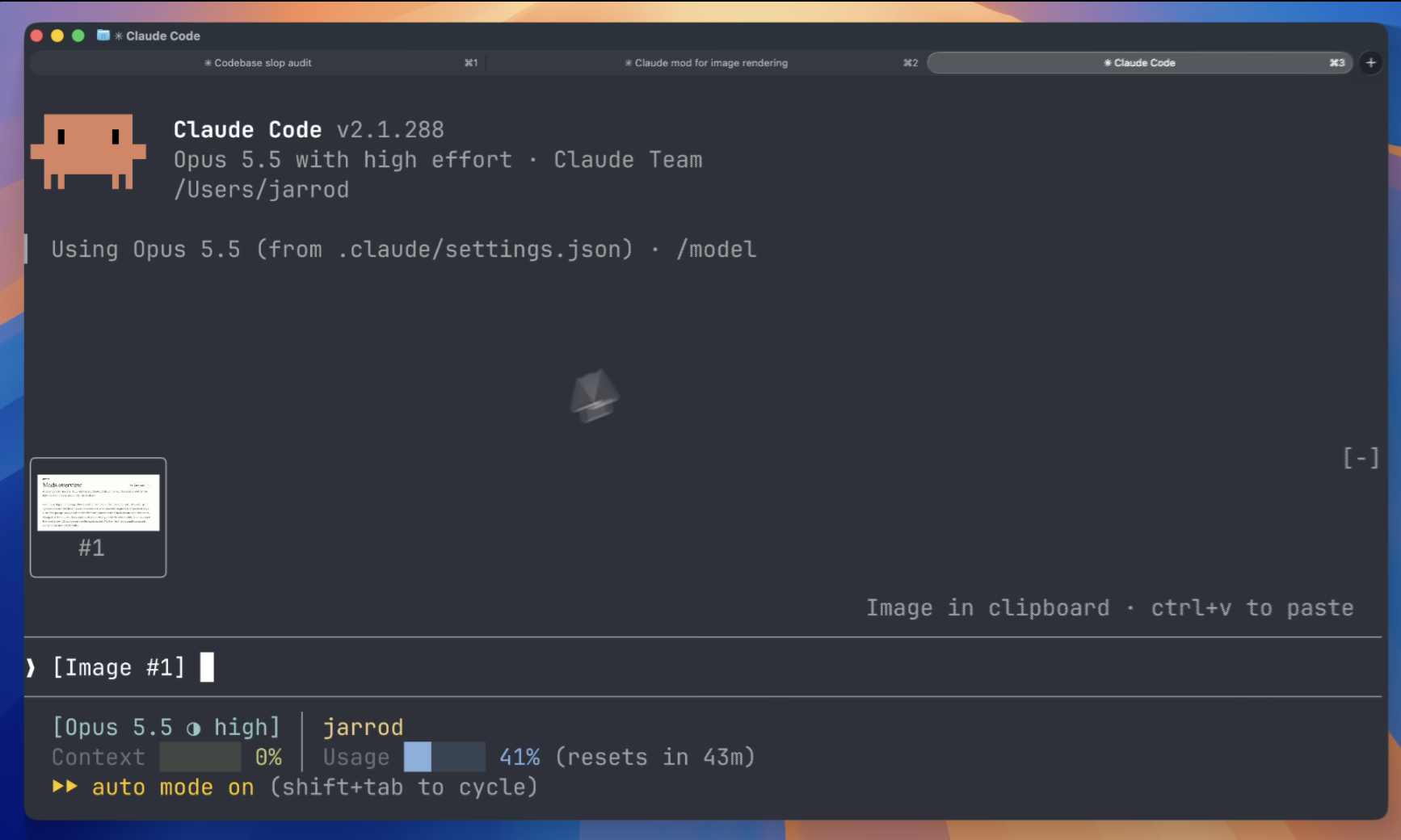
Claude Image View is a Claude Code mod that displays thumbnails for images pasted into the prompt. Instead of working only with bare tags such as [Image #1], you can see the corresponding images in a row directly above the input area.
The mod is particularly useful when comparing screenshots, photos, or interface states. Each thumbnail is labeled with the number of its associated image tag, making it easier to reference the correct image in your prompt.
Key Features
- Immediate previews: Thumbnails appear as soon as you paste an image. You do not need to press another key.
- Multiple-image support: Pasting several images creates a row of numbered thumbnails.
- Preserved proportions: Wide screenshots remain wide, while portrait images remain tall.
- Automatic fitting: Tiles shrink to fit the available space, preventing the thumbnail row from scrolling or being cut off.
- Automatic cleanup: The row disappears after you send the prompt or delete the corresponding image tags.
- Local-only operation: The mod makes no network requests and writes no files.
Requirements
Before installing the mod, confirm that your environment meets these requirements:
- Claude Code version
2.1.287or later, which includes mods support. - macOS or Linux.
- A terminal that supports the kitty graphics protocol, such as Ghostty or kitty.
If your terminal does not support the kitty graphics protocol, the tiles display text such as
[Image #1]instead of the actual image. The Claude Desktop app already previews pasted images, so this mod does not draw anything there.
Install Claude Image View
Install from Inside Claude Code
Open a Claude Code session and run these commands in order:
/plugin marketplace add jarrodwatts/claude-image-view
/plugin install image-view
/reload-plugins
The first command adds the project's plugin marketplace, the second installs the mod, and the third reloads installed plugins for the current session.
Install from the Terminal
If you prefer using your shell, add the marketplace and install the plugin with:
claude plugin marketplace add jarrodwatts/claude-image-view
claude plugin install image-view@claude-image-view
After installation, run /reload-plugins inside an active Claude Code session. Alternatively, start a new session.
Basic Usage
- Open Claude Code in a compatible terminal.
- Paste an image into the prompt.
- Look above the input area for its numbered thumbnail.
- Write your request and refer to the generated tag, such as
[Image #1]. - Send the prompt. The thumbnail row clears automatically.
For example, after pasting two images, you can enter:
Why is the header misaligned in [Image #1] compared with [Image #2]?The preview row shows both images with labels #1 and #2, helping you verify that the prompt refers to them in the intended order.
Removing a Preview Before Sending
If you delete an image tag from the prompt, its associated tile is removed. Deleting all image tags clears the entire row.
How the Mod Works
Claude Code stores pasted images in a session cache using a path shaped like:
<tmp>/<project>/<session>/images/<n>.pngIt then inserts a matching [Image #n] tag into the prompt. Claude Image View connects these tags to their cached files through the following process:
- Every 200 milliseconds, it reads the prompt box and searches for
[Image #n]tags. A timer is necessary because pasting an image does not trigger an edit event. - For each detected tag, it locates the cached PNG and reads the image dimensions from its PNG header.
- It draws appropriately sized thumbnails above the prompt with Claude Code's
Imageelement.
The terminal reads each image file directly, so image data does not pass through the mod itself.
Security and Validation
Claude Image View operates locally. It makes no network requests and does not write files. Its access is limited to reading the prompt box, listing Claude Code's temporary folder to locate the active session cache, and reading the initial bytes of pasted images.
If CLAUDE_CODE_TMPDIR is not configured, the mod runs id -u once to determine the default temporary directory. You can inspect its hooks and calls by validating the repository:
claude plugin validate .Troubleshooting
No Thumbnail Row Appears
Run /plugin in Claude Code and inspect the dim status line under the tabs. It should list image-view as an active mod. If it is missing, run:
/reload-pluginsA Tile Says “no preview”
This message means the mod could not locate the cached image file. Claude Code may have changed where pasted images are stored. Record your Claude Code version and open an issue in the project repository.
The Tile Displays an Image Tag Instead of a Picture
If a tile contains [Image #1] rather than a thumbnail, your terminal does not support the kitty graphics protocol. Switch to a compatible terminal such as Ghostty or kitty.
Advanced Tips and Development
Check Your Claude Code Version
If the mod does not load, verify that you are using Claude Code 2.1.287 or newer. Earlier releases do not provide the required mods support.
Test Without Installing
Contributors can clone the repository and load it for a single session:
git clone https://github.com/jarrodwatts/claude-image-view
cd claude-image-view
claude --plugin-dir .
This is useful for testing local changes without installing the mod permanently.
Validate and Run Tests
From the cloned repository, validate the plugin and execute its test suite:
claude plugin validate .
claude plugin test .
The first time Claude Code loads the mod, it writes API type definitions into .claude-plugin/types/. After that, you can type-check the project with:
tsc -p .Conclusion
Claude Image View makes image-based Claude Code sessions easier to follow by placing responsive, numbered thumbnails above the prompt. Installation takes only a few commands, previews appear immediately, and all processing remains local. With a supported Claude Code version and a kitty-compatible terminal, you can compare and reference pasted images without relying on ambiguous image tags alone.