

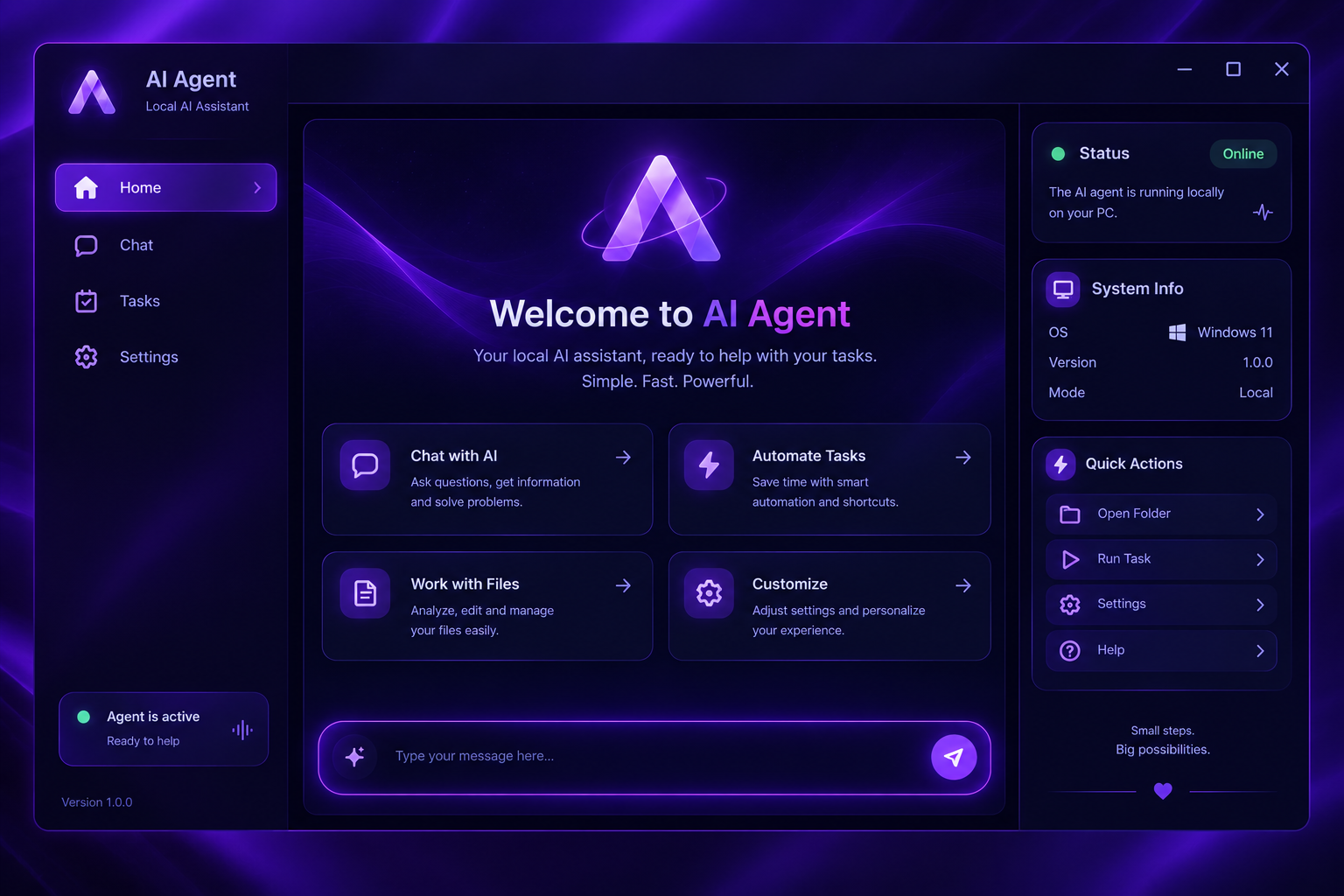
What Is AI Agent for PC?
AI Agent for PC is a simple, lightweight application designed to launch an AI agent directly on a Windows computer. Its primary goal is accessibility: instead of manually running scripts or entering terminal commands, you start the agent by opening an executable file.
The project is intended for beginners and anyone who wants a straightforward local launch process. The README does not document additional dependencies, configuration steps, model requirements, or advanced integrations, so this tutorial focuses on the currently described executable-based workflow.
Key Features
- Simple executable launch: Start the agent by double-clicking its
.exefile. - Windows support: The application is designed to run directly on a Windows PC.
- Minimal setup: No manual script startup process is required.
- No command-line interaction: You do not need to use Command Prompt or PowerShell to launch the agent.
- Beginner-friendly operation: The startup process follows the same pattern as opening a standard Windows application.
- Local PC focus: The project is intended to make running an AI agent on a personal computer more accessible.
Download and Setup
1. Download the Project
Download the project files from its GitHub repository. If the repository provides multiple download options, use the project package that includes the Windows executable described in the README.
2. Extract the Files If Necessary
If the project arrives as a compressed archive, extract it to a folder before trying to launch the application. Keep the extracted project files together unless the project documentation explicitly says otherwise.
3. Locate the Executable
Open the downloaded or extracted project folder and find the file whose name ends in .exe. Windows may hide known file extensions, so it may appear as an application without the visible .exe suffix.
4. Launch the Agent
Double-click the executable. The AI agent should start automatically, without requiring a separate terminal window or startup script.
- Open the project folder.
- Find the application file.
- Double-click the file.
- Wait for the agent interface to open.
Basic Usage
The standard usage flow is intentionally short. Whenever you want to run the agent, return to the project folder and open the executable.
Download project → Locate .exe → Double-click → Agent startsFor example, after placing the project in a folder you can remember, open that folder in File Explorer and double-click the application. There is no documented requirement to run a command such as python, install packages from a terminal, or manually launch a script.
The README explains how to start the agent, but it does not provide detailed instructions for configuring models, entering prompts, connecting external services, or using specific agent tools.
Practical and Advanced Tips
Create a Convenient Shortcut
To avoid searching for the executable each time, create a Windows shortcut to it and place that shortcut on your desktop. Keep the original project files in their downloaded or extracted folder.
Use a Stable Folder
Store the project in a location you do not frequently rename or move. This helps prevent desktop shortcuts from losing their connection to the executable.
Keep Project Files Together
Even though the executable starts the agent, it may be distributed alongside other project files. Unless the documentation says those files are optional, keep the folder intact rather than moving only the .exe.
Check for Project Updates
The project is currently under development, so its startup process, interface, and available functionality may change. Review the latest README when downloading a newer version rather than assuming that older instructions still apply.
Avoid Assuming Offline Operation
The agent is described as running locally on a Windows PC, but the README does not state whether every AI operation works offline. Network, model, or service requirements should be confirmed in future project documentation.
Current Limitations
The available documentation presents the project as an early, easy-to-launch AI agent. It does not specify supported Windows versions, hardware requirements, configuration options, packaged models, update procedures, or troubleshooting steps. Because the project remains under development, users should rely on the latest repository documentation for any newly added requirements.
Conclusion
AI Agent for PC reduces startup to a familiar Windows workflow: download the project, locate the executable, and double-click it. Its minimal setup and lack of command-line interaction make it approachable for beginners. The project is still evolving, so check its current documentation as new features and improvements are introduced.