

What Watson Does
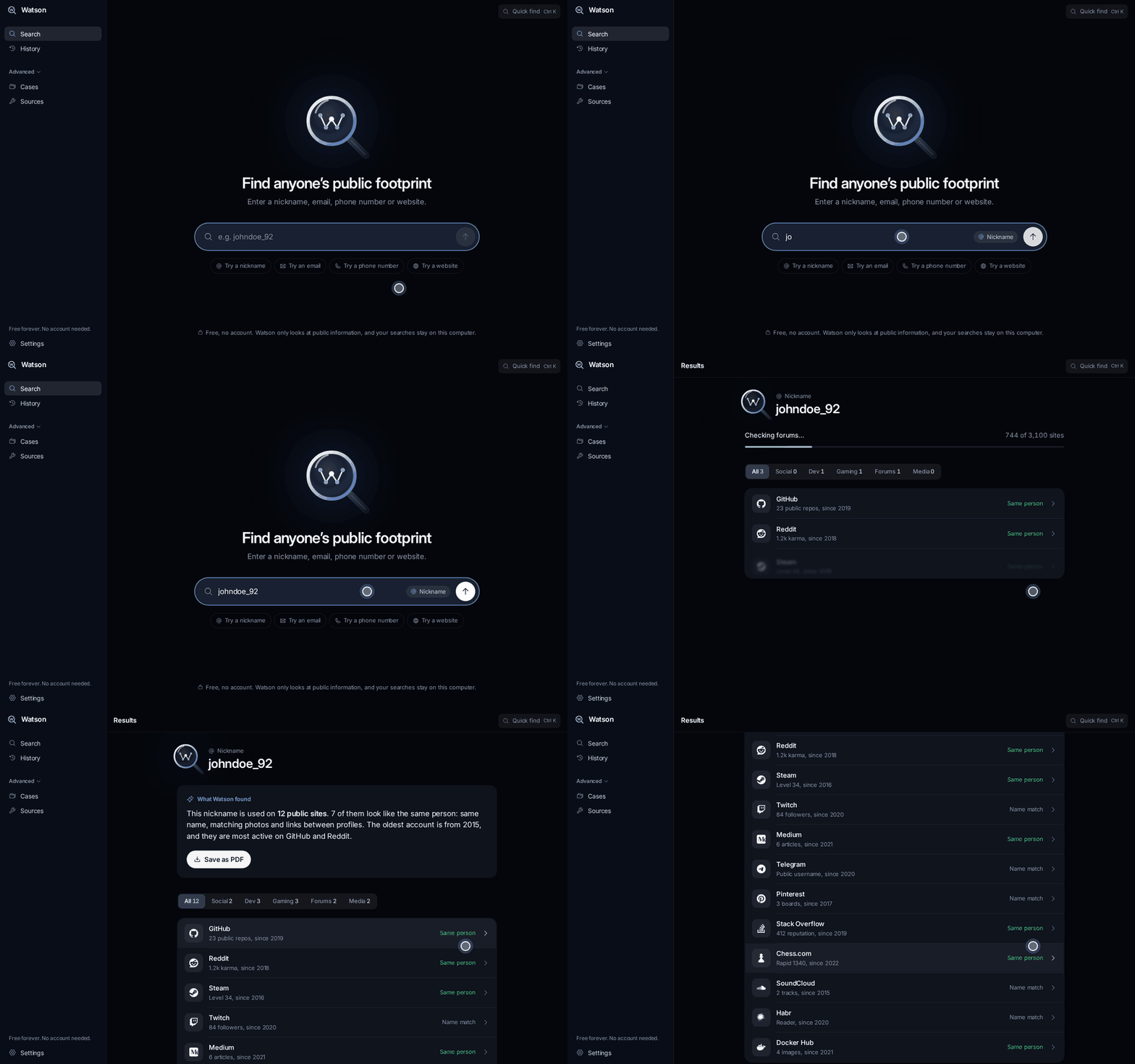
Watson is a free Windows application for open-source intelligence, commonly called OSINT. It searches public information left across social networks, forums, gaming communities, developer platforms, and other websites. Instead of manually opening dozens of tabs, you enter one identifier and receive a readable summary of the public trail Watson finds.
Watson accepts four main types of input:
- A nickname or username
- An email address
- A phone number
- A website
The application automatically determines which type of value you entered. According to the project README, it checks more than 3,100 public sources without requiring a terminal, Python environment, account, or API keys.
Typical uses include checking a seller before sending payment, reviewing a job offer, researching a potential business partner, or auditing your own public digital footprint.
Watson searches information that is already public. It does not hack accounts, impersonate users, or purchase leaked data. Always follow applicable laws and never use the tool to stalk, harass, or threaten anyone.
Key Features
One-field searches
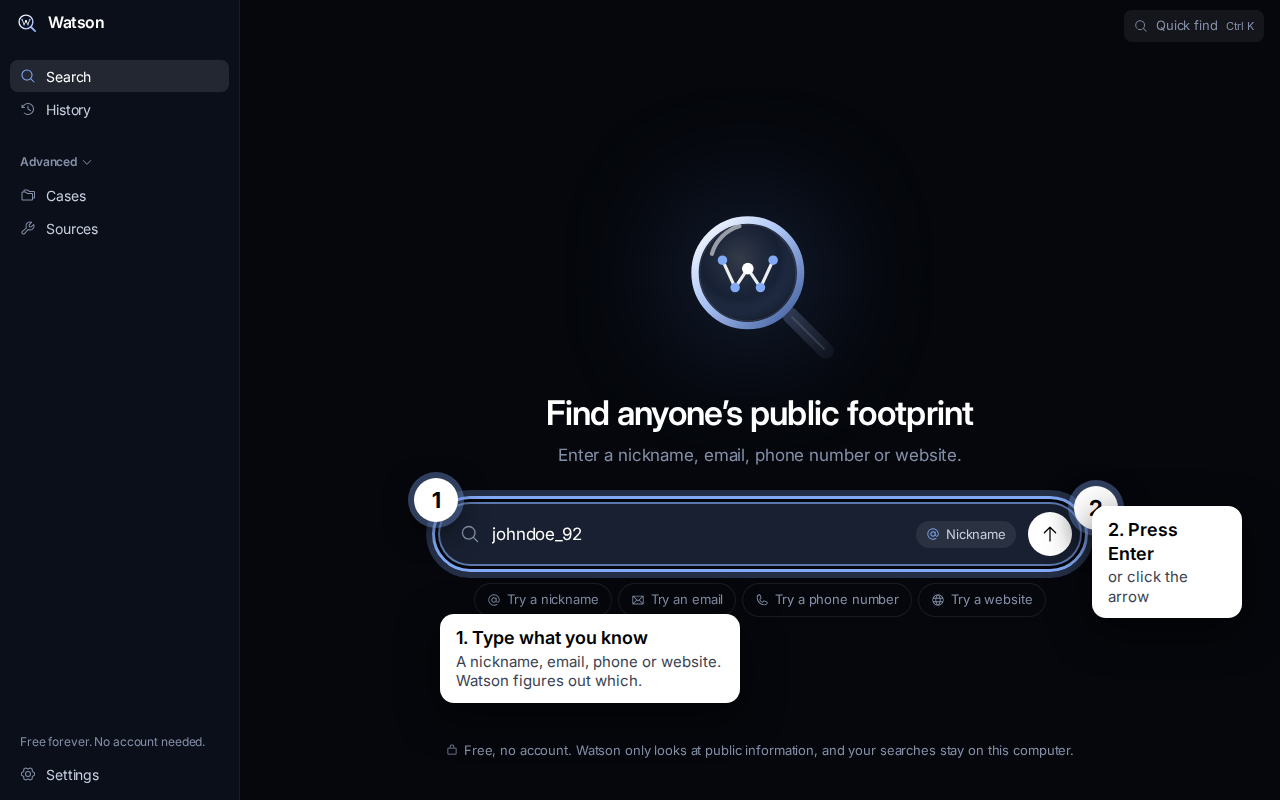
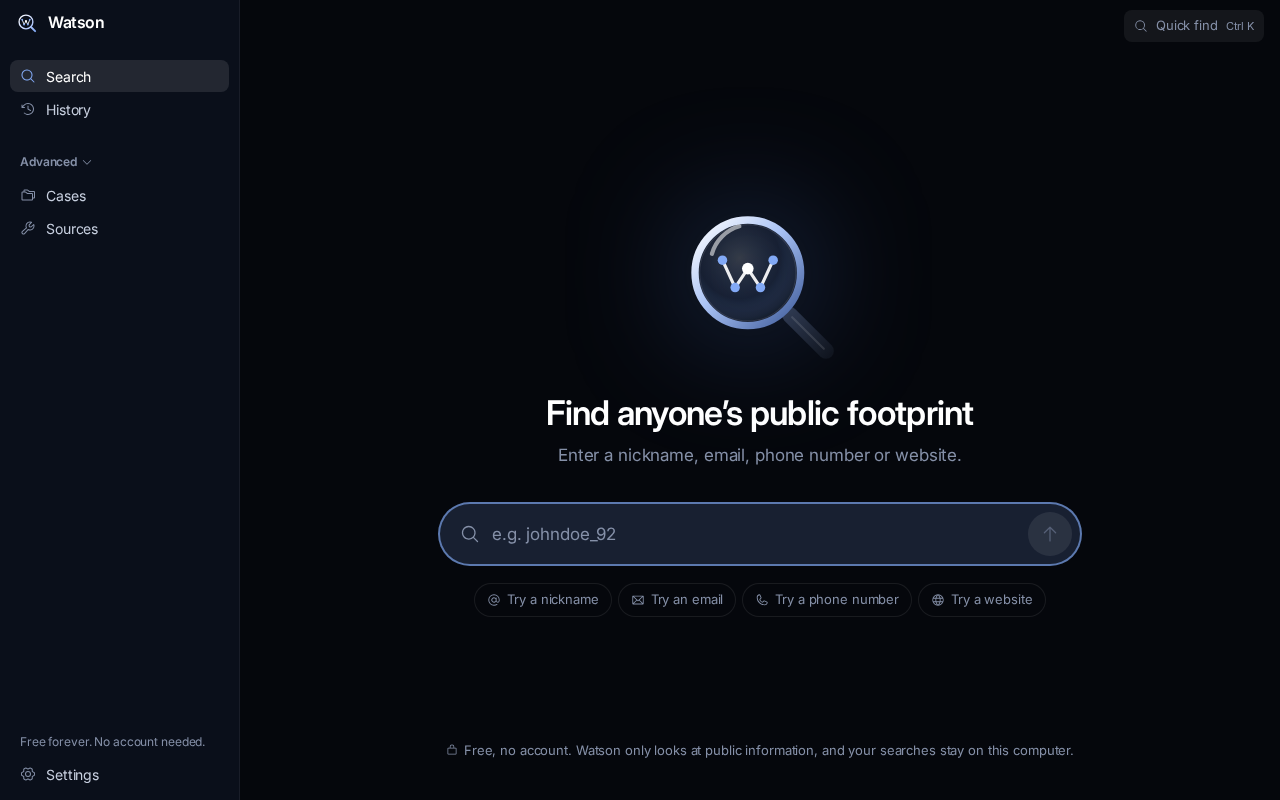
The main search screen contains a single input field. Enter the information you have, press Enter, and Watson identifies the input type before running the search.
Plain-language results
Rather than presenting only raw links or JSON, Watson summarizes the findings in readable language. Results can be filtered by categories such as social networks, games, and developer sites.
Identity confidence labels
Watson distinguishes stronger identity connections from simple username overlap:
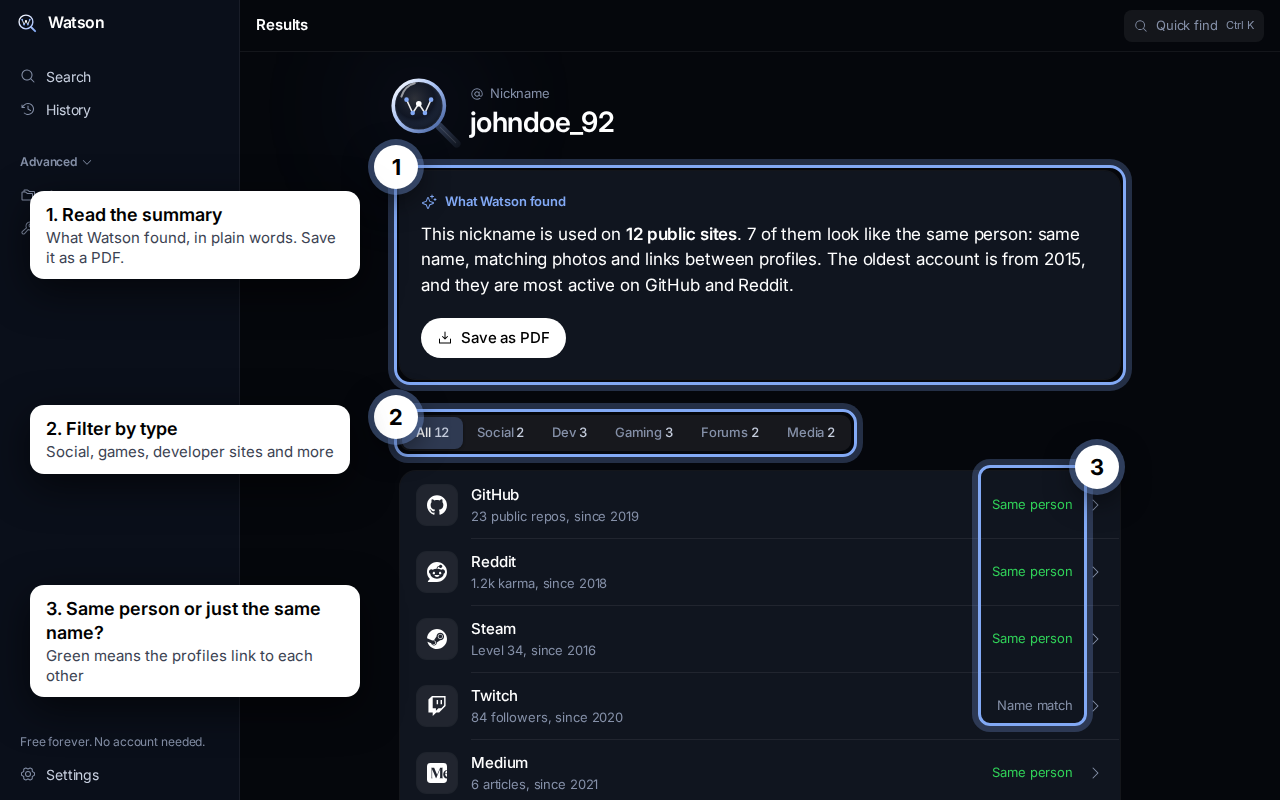
- Same person: Profiles link to one another or share photos and other details, indicating that they almost certainly belong to the same person.
- Name match: Only the nickname matches. The profile may belong to someone else.
These labels help prevent a common OSINT mistake: assuming that every account with the same username belongs to the same individual.
History, cases, and reports
Every search is saved locally in History, so you can return to previous findings. For larger investigations, Cases organize discovered information into a connection map. Watson can also create a PDF report that is easier to share than copied links or raw output.
No account is required, and the README states that search history remains on your own computer.
Install Watson on Windows
The desktop application is currently available only for Windows. There is no Mac download yet.
Step 1: Download the application
You can get the same build from either of these locations:
- Visit watsonfind.icu and select Download free.
- Download watson-AI-osint-all-in-one.zip from the latest GitHub release.
If the GitHub download returns a 404 error, the repository may be private. In that case, ask the repository owner to add your GitHub account as a collaborator, sign in, and try the link again.
Step 2: Extract the complete folder
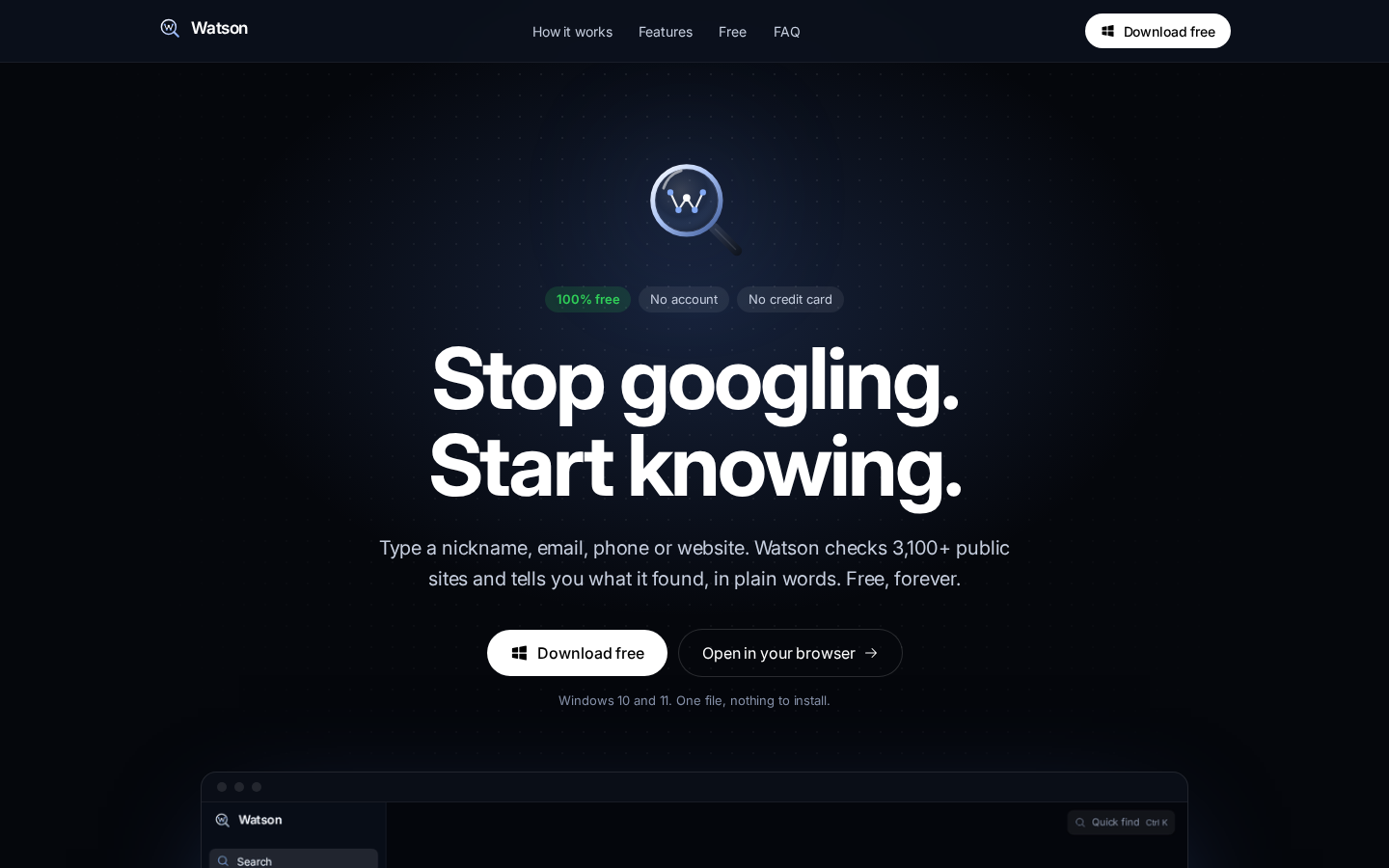
Unpack the downloaded ZIP archive. Keep the extracted files together rather than moving only the executable, then open Main.exe. The application includes its required runtime, so you do not need to install Python, Node.js, or additional packages for normal desktop use.
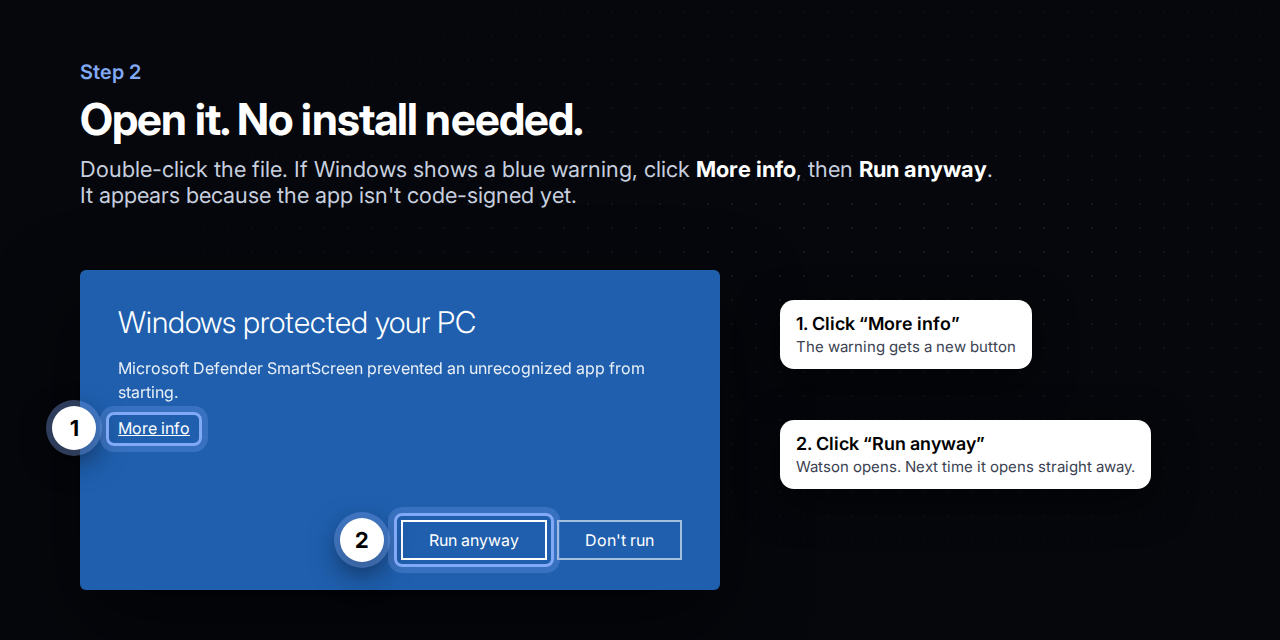
The README describes the release as code-signed. If Windows nevertheless displays a security prompt, confirm that you downloaded the file from the official website or repository before choosing to run it.
Step 3: Remove Watson if necessary
Watson does not require a traditional installation wizard. To remove this portable build, close the application and delete its extracted files.
Run Your First Search
Step 1: Choose a precise identifier
Open Watson and enter one known value. For example, you could search for a seller's public username:
example_seller_92You can also enter a complete email address, phone number, or website. Use information you are legally permitted to research.
Step 2: Start the search
Press Enter. Watson determines the input type and checks its supported public sources.
Step 3: Read the summary
Begin with Watson's plain-language answer before reviewing individual profiles and mentions. The summary is intended to explain what the findings mean instead of leaving you with an unorganized wall of links.
Step 4: Evaluate every match
Give greater weight to entries labeled Same person, but still inspect their supporting details and source links. Treat Name match entries as leads rather than confirmed identities. A common username alone is not reliable proof that two accounts belong to one person.
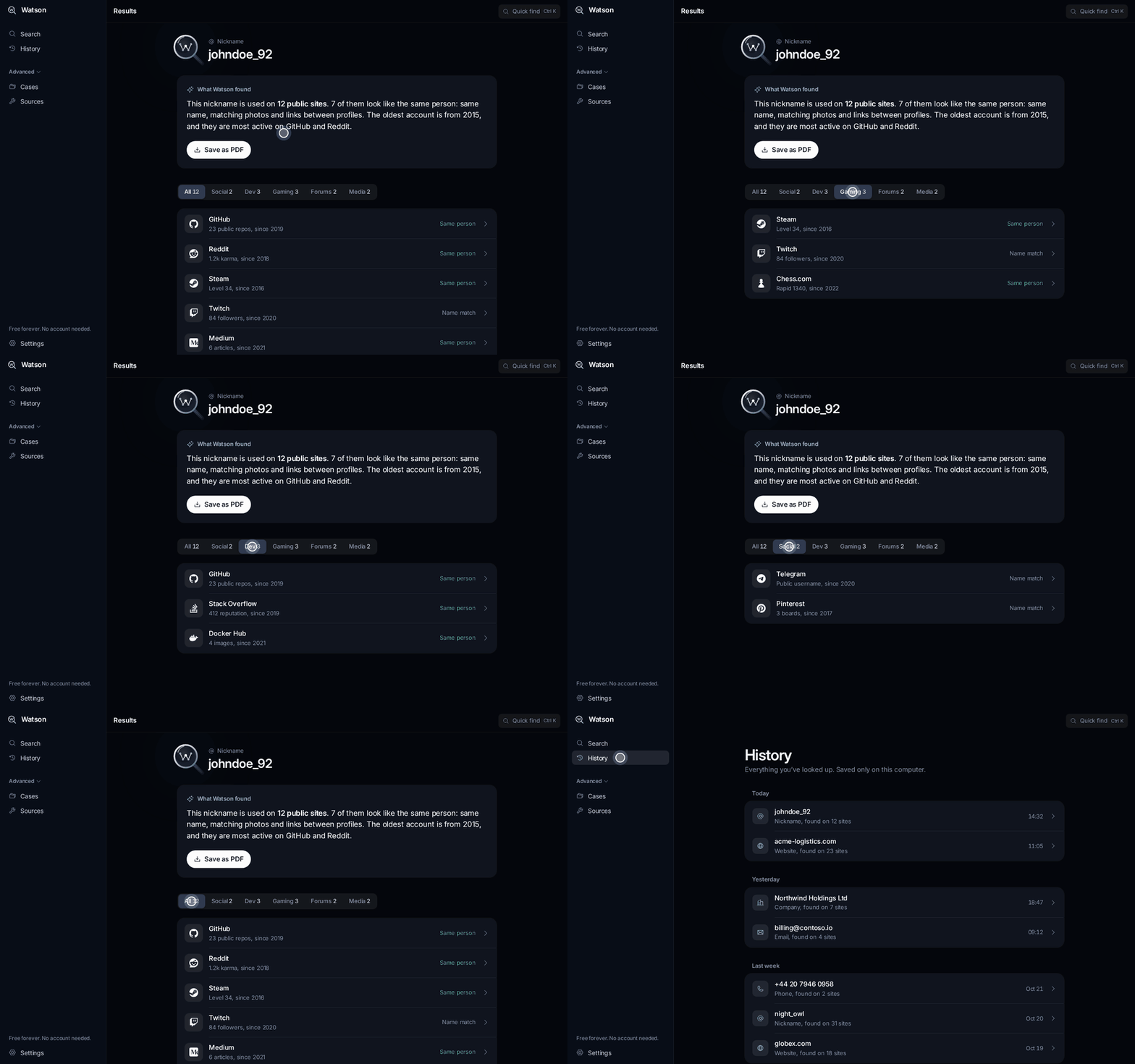
Step 5: Filter the results
Use the category filters to narrow a large result set. For example, you can focus on social networks when checking a public identity or developer sites when researching a technical profile.
Practical Search Examples
Check a marketplace seller
- Search the username used in the listing.
- Review the summary and identity labels.
- Filter the results by relevant social or community platforms.
- Open the original public sources and compare details carefully.
- Save a PDF if you need to retain or share the findings.
Review a job offer
- Search the recruiter's public email address or nickname.
- Search the employer's website separately.
- Compare the public profiles and mentions with the claims in the offer.
- Do not treat a nickname-only match as confirmation.
- Organize related findings in a case if the review becomes more complex.
Audit your own digital footprint
- Search usernames you currently use.
- Repeat the process for old usernames, public email addresses, or websites.
- Use filters to identify where your information appears.
- Review the original public pages to decide whether any information should be updated or removed.
Advanced Tips
Use History to avoid duplicate work
Watson saves previous searches in History. Before repeating a lookup, check whether the identifier has already been searched. This also makes it easier to return to an earlier lead without reconstructing the query.
Create cases for connected findings
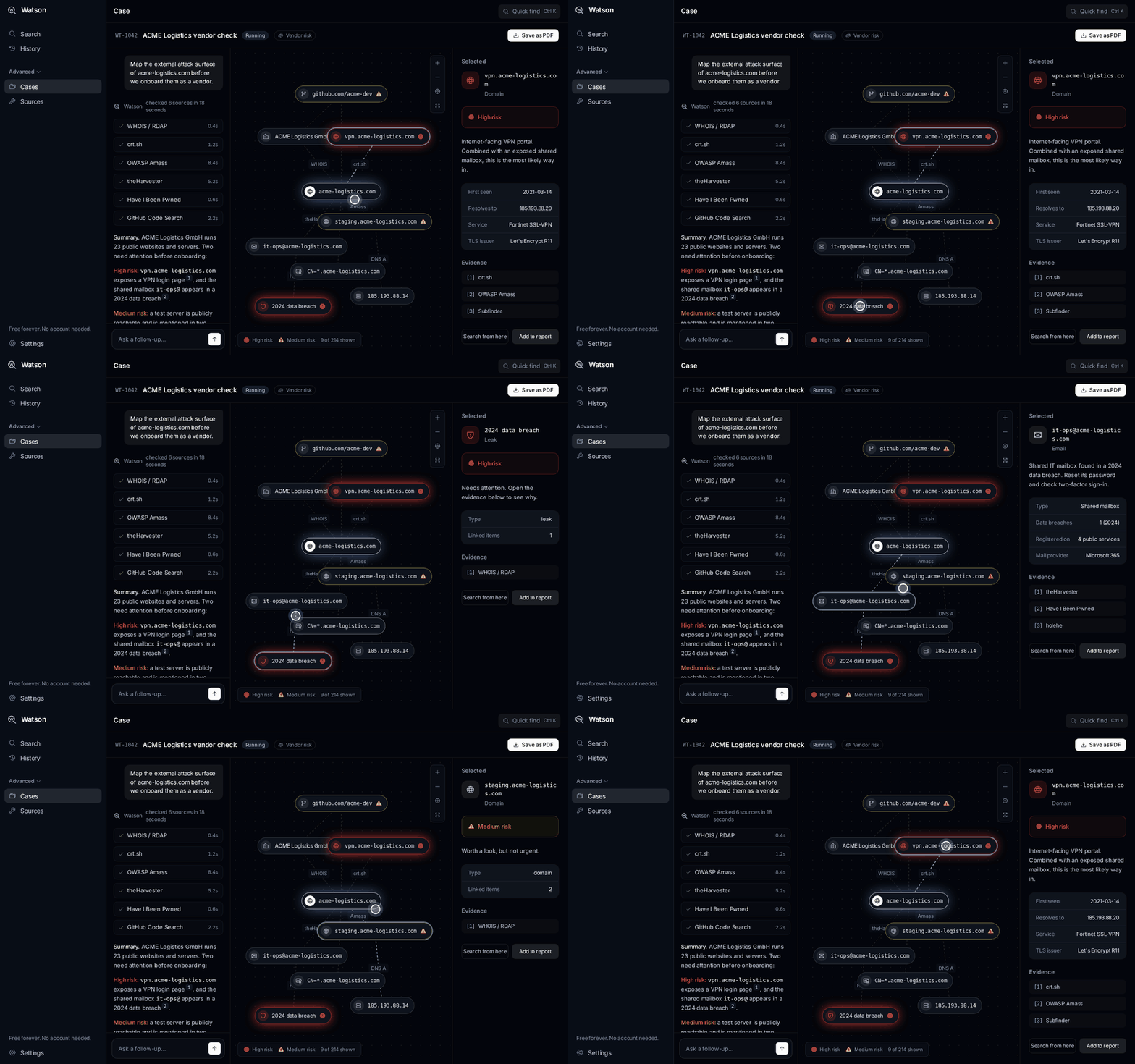
Use Cases when one search produces additional identifiers or related profiles. The case map connects the information Watson found. Select a point on the map to see what it represents, why it may matter, and where the supporting evidence came from.
Keep evidence separate from interpretation
A result can be relevant without proving identity. Record the source, the matching details, and Watson's confidence label separately from your conclusion. This is especially important for common names and usernames.
Verify important findings at the source
Open the public page behind a result before making a decision. Profiles change, accounts can be copied, and public information can be incomplete. Watson helps locate and organize leads, but sensitive business or personal decisions should not rely on one automated result alone.
Export a concise report
Use the one-click PDF option when another person needs to review the findings. Before sharing, check that the report is relevant, accurate, and handled in accordance with privacy rules and local law.
Run Watson from Source
Developers need Node.js 22 or newer. The project uses Vite, React 19, TypeScript, Tailwind CSS 4, and Electron.
Start the development website
From the project directory, install dependencies and launch the Vite development server:
npm install
npm run dev
Then open http://localhost:5173.
Run the Electron desktop application
npm run appCreate a production web build
npm run buildThe website is a static landing page, while the application itself is loaded from dist/app.html by Electron. The generated dist/ folder can be uploaded to a static host. The repository includes SPA fallback configuration for Netlify, Cloudflare Pages, and Vercel.
If you deploy the landing page, the host must also serve the application download at /api/download. The download buttons use DOWNLOAD_URL in src/pages/Landing.tsx.
Build the Windows release
npm run dist:winThe resulting archive is written to:
release/watson-AI-osint-all-in-one.zipThe README states that this build can run on Linux without Wine, although the generated executable keeps Electron's default file icon. Build on Windows to embed the Watson icon.
Understand the important source files
src/landing.tsx: Website entry point forindex.html.src/app.tsx: Desktop application entry point forapp.html.src/pages/Landing.tsx: Landing page and download URL configuration.src/pages/app/: Search, Results, History, Case, and Sources screens.src/components/: Shared interface elements, including the logo and connection map.src/data/mock.ts: Example data andsearchProfiles(), described by the README as the function to connect to real lookups.electron/main.cjs: Electron desktop window configuration.DESIGN.md: Project rules for colors, typography, icons, and voice.
Conclusion
Watson provides a streamlined Windows interface for searching public digital footprints without accounts, API keys, command-line tools, or subscription fees. Start with one precise identifier, inspect the summary, distinguish confirmed connections from nickname-only matches, and verify important evidence at its original source. History, filters, cases, maps, and PDF reports can then help you organize larger reviews responsibly.