

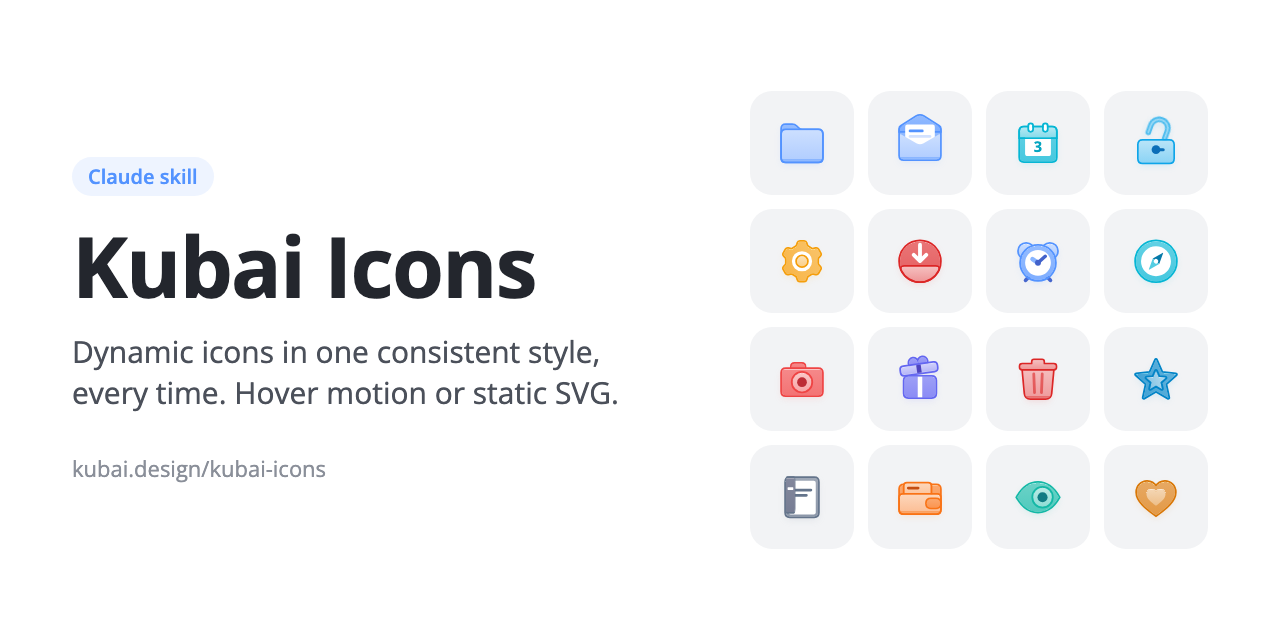
Kubai Icons is a Claude skill for creating icons that share one visual language. Give Claude a feature list or an existing product repository, and it can design icons that match the 66 examples included in the project. The result can be a dynamic SVG driven by JavaScript or a self-contained static SVG file.
The system is based on layered shapes, outside outlines, accent-derived colours, gradients, shadows, and object-specific hover motion. A folder opens, an envelope unseals, and a calendar turns a page instead of using generic animation.
Open the live gallery to preview the complete collection, switch palettes, and hover over the icons.
How the project works
Kubai Icons packages the design rules and implementation tools Claude needs to extend the collection consistently:
PROMPT.mddefines the hard requirements for canvas sizing, keylines, layers, corners, outlines, lighting, colour, marks, and motion.src/engine.jsprovides colour derivation, outside outlines, gradients, shadows, interpolation, and palettes.src/icons.jscontains 66 worked examples that serve as structural references for new icons.scripts/check.mjsperforms a headless visual check across rest and hover states, intermediate animation frames, multiple sizes, and every palette.
Each icon is assembled from a back piece, optional white content, and a front piece. This folder-like construction helps preserve depth and makes the motion readable. Every part has two keyframes: a rest state and a hover state.
Install the Claude skill
Install through Claude Code
The simplest approach is to ask Claude Code to install the repository into its skills directory. Send the following request:
Install the Kubai Icons skill for me:
clone https://github.com/kubai087/kubai-icons into ~/.claude/skills/kubai-icons
(if it's already there, pull the latest version instead),
make sure ~/.claude/skills/kubai-icons/SKILL.md exists, and tell me when it's ready.
Restart Claude Code after the installation. The skill should be available on the next start.
Install manually
You can download the latest release archive and extract it into your skills directory:
unzip kubai-icons-v1.0.0.zip -d ~/.claude/skills/Alternatively, clone the repository directly:
git clone https://github.com/kubai087/kubai-icons.git ~/.claude/skills/kubai-iconsFor a skill marketplace that requires version and display-name fields in SKILL.md, use the kubai-icons-v*-platform.zip archive from the same release. It includes those fields in the frontmatter.
Choose a suitable model
The skill relies on careful geometry, layered animation, and repeated screenshot review. The project was developed and blind-tested with Claude Opus 5.5. In Claude Code, you can select it with:
claude --model claude-opus-5-5Generate your first icons
Once the skill is installed, describe the icons you need in ordinary language. You do not need to name the skill explicitly because it responds to icon-related requests.
Read this repository and draw dynamic icons for its main features.Add a scissors icon and a map icon to this set.We need an icon for Export that matches the others.
Claude follows a repeatable process:
- It reads
PROMPT.mdand describes each feature as an everyday object plus a natural hover action, such as “a folder opens.” - It selects the closest existing icon by structure and reuses the project engine.
- It runs the self-check with comparison icons beside the new work.
- It reviews screenshots for dimensions, outlines, layers, colours, and animation states.
- It iterates until the checklist passes, then adds the icons to the gallery and updates the counts.
To begin a separate icon set for your own product, the skill can copy the engine, gallery, and self-check into your project so the new icons can be developed there.
Choose dynamic or static output
Dynamic output is the default. It contains SVG and JavaScript that changes the icon’s shapes on hover and is intended for web pages or interfaces that run JavaScript. Static output produces one self-contained SVG per icon with no script or stylesheet, making it suitable for design tools, native apps, documents, and <img> elements.
Ask Claude for static SVG files or for icons I can drop into Figma when you need exported assets. You can also export existing icons directly from the repository.
node scripts/export.mjs --only 文件夹,日历 --palette 薄荷 --out icons/Export options
--paletteselects a palette. Available values include 彩色, 蓝灰, 青瓷, 薄荷, 薰衣草, 杏色, and 黑色.--accent #hexapplies one accent colour to every icon.--state hoverexports the end of the hover animation instead of the rest pose.--size 96sets the output width and height in pixels.--pad 2.5adds room around the canvas so shadows are not clipped.--out dirchooses the output directory. The default isexport/.
Preview the icon set locally
The repository includes a gallery for inspecting the full set. Open index.html in a browser to view the icons locally. Hover over an icon to see its motion, change the palette, or enable the demo mode to watch the collection animate.
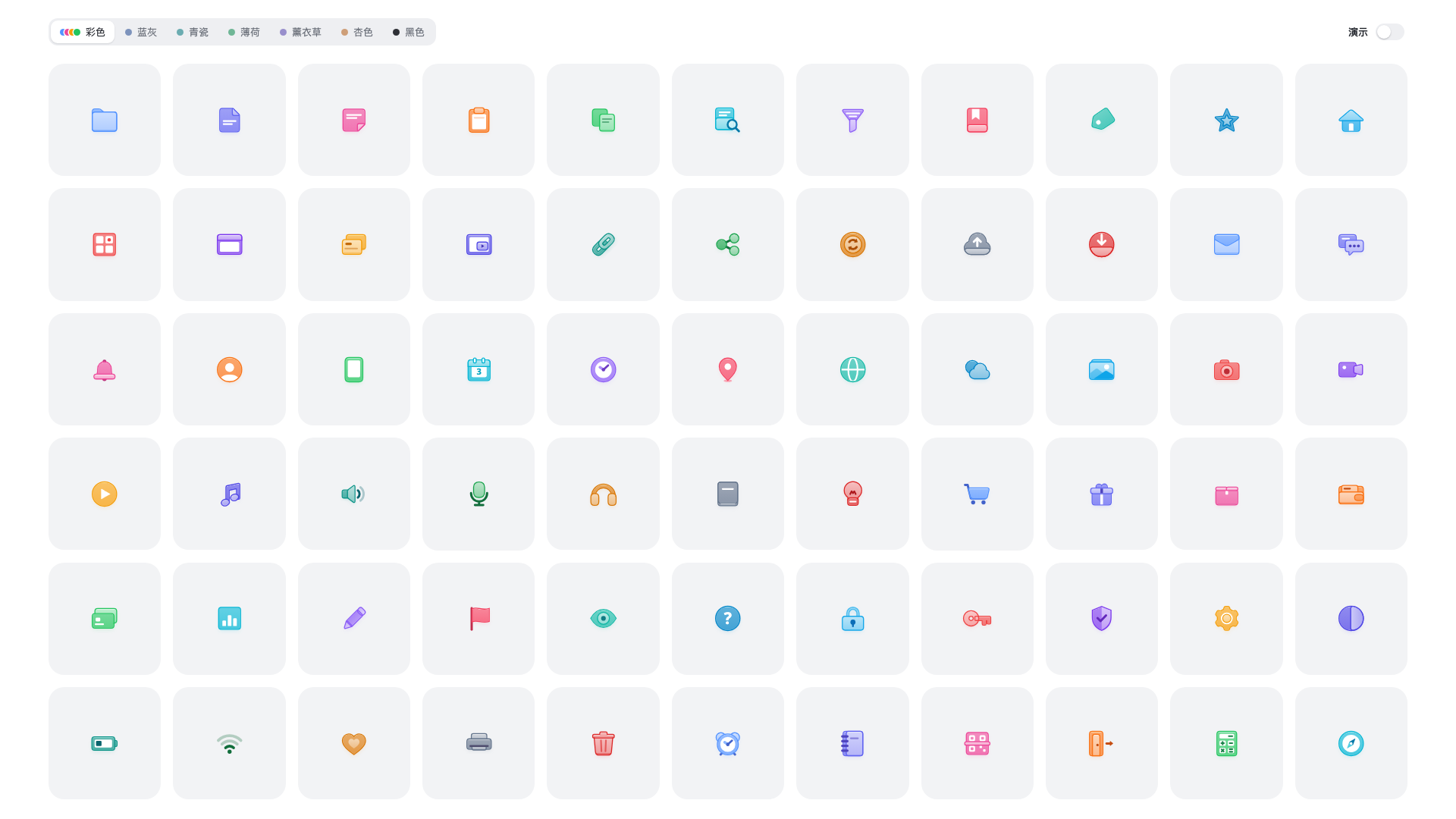
Seven palettes are included: one colour per icon, blue-grey, celadon, mint, lavender, apricot, and black. The palette system derives the icon colours from a base accent, and changing palettes animates the colour transition as well.
Run the visual self-check
The self-check requires Node.js 18 or later and Chrome. It runs headlessly, so it does not open a browser window. To check selected icons and place existing icons beside them for comparison, run:
node scripts/check.mjs --only 剪刀,地图 --with 文件夹,邮件,下载--onlychecks only the named icons. Without it, the complete set is checked.--withadds existing icons beside the selected icons for visual comparison.--accent #F59E0Bapplies one accent colour to test marks on light backgrounds.--scale 3renders sheets at three times the normal scale to reveal seams.--out dirwrites screenshots to a directory other thancheck-out/.
Set the CHROME environment variable if Chrome is installed at a nonstandard path. The repository’s animation generation script, scripts/media.mjs, additionally requires ffmpeg and img2webp.
Advanced workflow tips
Start from structure, not just meaning
When requesting a new icon, explain the feature and its intended physical action. Claude uses the closest existing example as a structural starting point, so a request such as “a lock that springs open” provides more useful direction than a generic request for a security symbol.
Compare icons in multiple conditions
Run checks with comparison icons, alternate palettes, and a larger scale. This helps reveal inconsistencies in outlines, seams, layering, marks, and colour contrast that may not be visible in a single default preview.
Use static export for non-web destinations
Choose static SVG when the destination cannot run the engine’s JavaScript, such as a design tool, native application, document, or standard image element. Use dynamic output when hover interaction is part of the interface.
Contribute improvements carefully
You can improve the skill by reporting unclear rules, running a blind test with a fresh Claude session, or fixing a script. You can also design an icon with the skill and submit a pull request. Read CONTRIBUTING.md and the code of conduct before contributing. Security issues should follow SECURITY.md.
Licensing considerations
Kubai Icons uses the Kubai Icons License and is source-available rather than open source. Icons created with the skill belong to their creators and may be used commercially without credit. The repository’s engine, gallery, example icons, and self-check can be copied into an icon-set project if the copyright notice at the top of each file remains.
The 66 example icons may be used in products, including as animated or exported SVG assets, but not as a separate icon pack. The skill may be used, modified for personal work, and shared as an exact unmodified copy for free. Modified or translated versions of PROMPT.md and SKILL.md must not be republished as another product, sold, or presented under a different name.
Conclusion
Kubai Icons turns Claude into a repeatable icon-design workflow rather than a one-off image generator. Install the skill, describe your product features, choose dynamic or static output, inspect the local gallery, and use the headless self-check to refine consistency. The included engine, examples, palettes, and rules make it practical to extend the set without rebuilding the visual system each time.