

What Is Capri AI?
Capri AI is a Windows desktop application that gives you a single interface for working with Claude Code, Codex, Antigravity, and other AI assistants. Instead of switching between terminals and separate tools, you describe a goal in plain language and let the connected assistant plan and perform the work through Capri.
Capri can work with files and project folders, use shell commands and applications, interact with the web, write and run code, and create automations. It includes an approval gate so you can review sensitive actions before they happen.
Key Features
- Multiple AI engines: Switch between Claude Code, Codex, Antigravity, and custom assistant adapters.
- Desktop-native workflow: Use a graphical application without working directly in a terminal.
- Files and projects: Ask Capri to find, read, organize, edit, and work across project folders.
- Agent tools: Let the selected engine plan tasks, use tools, check results, and report back.
- Code assistance: Write, refactor, debug, and run code through your selected engine.
- Automations: Convert repeated chores into a single natural-language request.
- Approval controls: Review or deny actions before Capri performs them.
- Voice and desktop presence: Talk to Capri by typing or voice, use the optional “Hey Capri” wake phrase, and customize her cyberpunk desktop presentation.
System Requirements and Download
Capri is currently available for Windows 10 or newer. macOS and Linux versions are planned but are not available yet.
Download the latest Windows release from the Capri releases page. The README lists a portable ZIP package, which can run from any folder without installation. The project also documents an installer package named Capri-Setup.exe.
Installation and First Launch
1. Choose a Windows build
Use the portable build if you want to keep Capri in a specific folder or run it without installing. Use the installer if you prefer a standard Windows setup and Start menu entry.
2. Install or extract Capri
- For the installer, run
Capri-Setup.exeand follow the setup wizard. - For the portable version, extract
Capri-Portable.zipinto a folder of your choice. - Launch Capri. If you used the installer, you can open it from the Windows Start menu.
Windows SmartScreen may warn that the application is not widely downloaded. If you obtained the file from the repository’s official Releases page, select More info and then Run anyway.
3. Connect an AI assistant
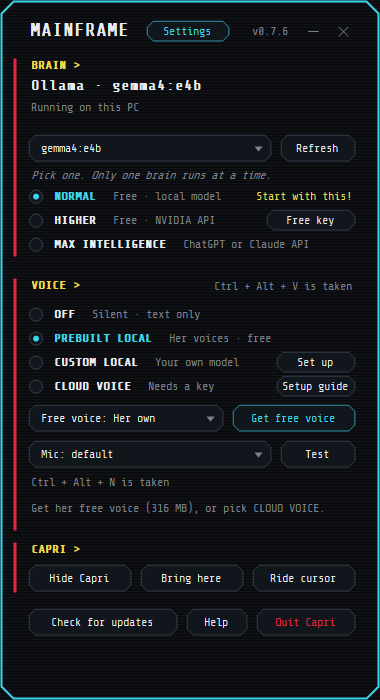
During the first launch, Capri asks which assistant you want to use. Select an available engine such as Claude Code, Codex, or Antigravity. Then sign in to your account or provide the required API key. Other assistants can be connected through custom adapters.
How a Capri Request Works
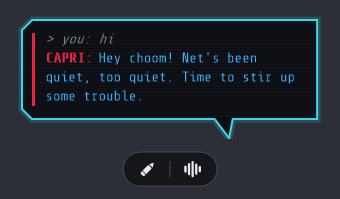
Capri uses a simple interaction model:
- Describe a goal: Write what you want in ordinary language, or communicate by voice.
- Route the request: Capri sends the request to the AI engine you selected.
- Plan the task: The engine determines the required steps and tools.
- Review actions: Capri presents sensitive actions for your approval when approval mode is enabled.
- Run and report: Capri performs approved operations and reports the result.
The tool layer can work with files and projects, shell commands and applications, and the web. You can also interrupt an active job by pressing Esc.
Practical Usage Examples
Organize a folder
To clean up a Downloads folder, ask:
Clean up my Downloads folder and group everything by type.Capri can scan the folder, propose a plan, and move files after you approve the operation. Review the proposed changes carefully before allowing files to be moved or renamed.
Debug a project
Open or reference a project folder and request:
Find the bug in this project and fix it.
The connected engine can read the code, locate a likely issue, apply a patch, and run checks. Confirm that the correct project directory is accessible and inspect the changes before accepting them.
Summarize documents
For a folder containing PDFs, you can use:
Summarize every PDF in this folder into one document.Capri can read the files and produce a combined summary. Make sure the folder contains only documents you intend to send to the connected AI provider.
Create and launch a web app
To start a new development project, try:
Set up a new web app and start it.The assistant may scaffold the project, install dependencies, and launch it. Because this request can create files and run commands, use approval mode and review each proposed operation.
Create a recurring task
You can describe a repeated chore naturally:
Every Monday, back up my Documents folder.The README lists automations as an available capability. However, the roadmap also lists a dedicated task scheduler as planned, so the exact recurring-task implementation may depend on the current release.
Configure Permissions
Capri’s example configuration uses an engine selection, a permission mode, allowed folders, and a visual theme:
engine: claude-code        # claude-code | codex | antigravity | custom

permissions:
  mode: ask                # ask before acting | auto | read-only
  allowed_folders:
    - ~/Documents
    - ~/Projects

interface:
  theme: cyberpunk
The ask mode is the safest starting point because Capri requests confirmation before acting. A read-only mode is useful when you want analysis without changes. The example also shows auto, which allows actions to run automatically; use it only when you understand the risks and have limited the accessible folders.
Advanced Tips for Safer Workflows
- Start with narrow permissions: Allow access only to the Documents, Projects, or other folders required for the current task.
- Keep approval enabled: Read proposed operations before deleting, moving, overwriting, or executing anything.
- Back up important data: Create a backup before running large file operations or broad automation requests.
- Protect credentials: Never share API keys, account tokens, or other secrets with other people.
- Use clear requests: State the target folder, expected output, restrictions, and whether Capri may modify files.
- Interrupt when necessary: Press
Escto stop Capri during an active job. - Check provider policies: Requests are processed by the AI assistant you connect, under that provider’s terms and privacy policy.
Voice, Memory, and Desktop Features
Capri supports typed conversations and voice chat, including the optional “Hey Capri” wake phrase. She can respond in 80 languages and can speak using her own free voice, a voice model you provide, or supported services such as Fish Audio, ElevenLabs, and OpenAI.
The application can retain past chats and information it saw on your screen on your PC, according to the project description. Because the README notes that the exact data handling details are still being documented, review the connected provider’s privacy policy and avoid exposing sensitive information.
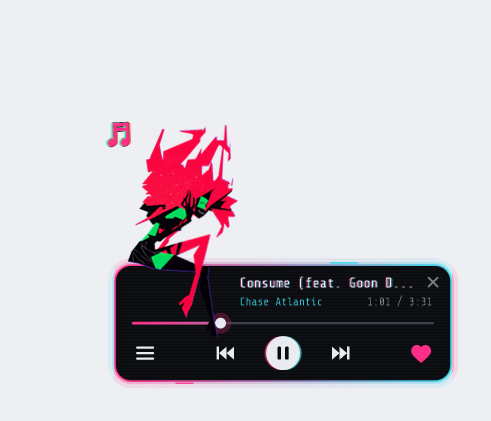
Capri also includes a cyberpunk-themed interface, a desktop character that can sit on windows or near the bottom of the screen, and a Windows mini player for music.
Current Support and Roadmap
The currently supported engines are Claude Code, Codex, and Antigravity. Other assistants are available through custom adapters. The Windows installer and portable application, multiple AI engines, and voice control are marked as complete in the roadmap.
Planned items include macOS and Linux versions, a plugin system, a task scheduler, a mobile companion, and a community cyberpunk theme gallery. If you have a feature request, submit it through the project’s issue tracker.
Conclusion
Capri AI turns supported coding assistants into a desktop-centered agent for files, projects, applications, code, voice conversations, and automations. To get started, download the Windows release, connect an assistant, keep permissions limited, and begin with a small task that you can easily review. As with any desktop agent, the best results come from clear instructions, careful approvals, and reliable backups.
Capri is an independent, unofficial fan project with a cyberpunk aesthetic inspired by Cyberpunk: Edgerunners. It is not affiliated with or endorsed by CD PROJEKT RED, Studio Trigger, Netflix, or another rights holder.