

What is FigGenie?
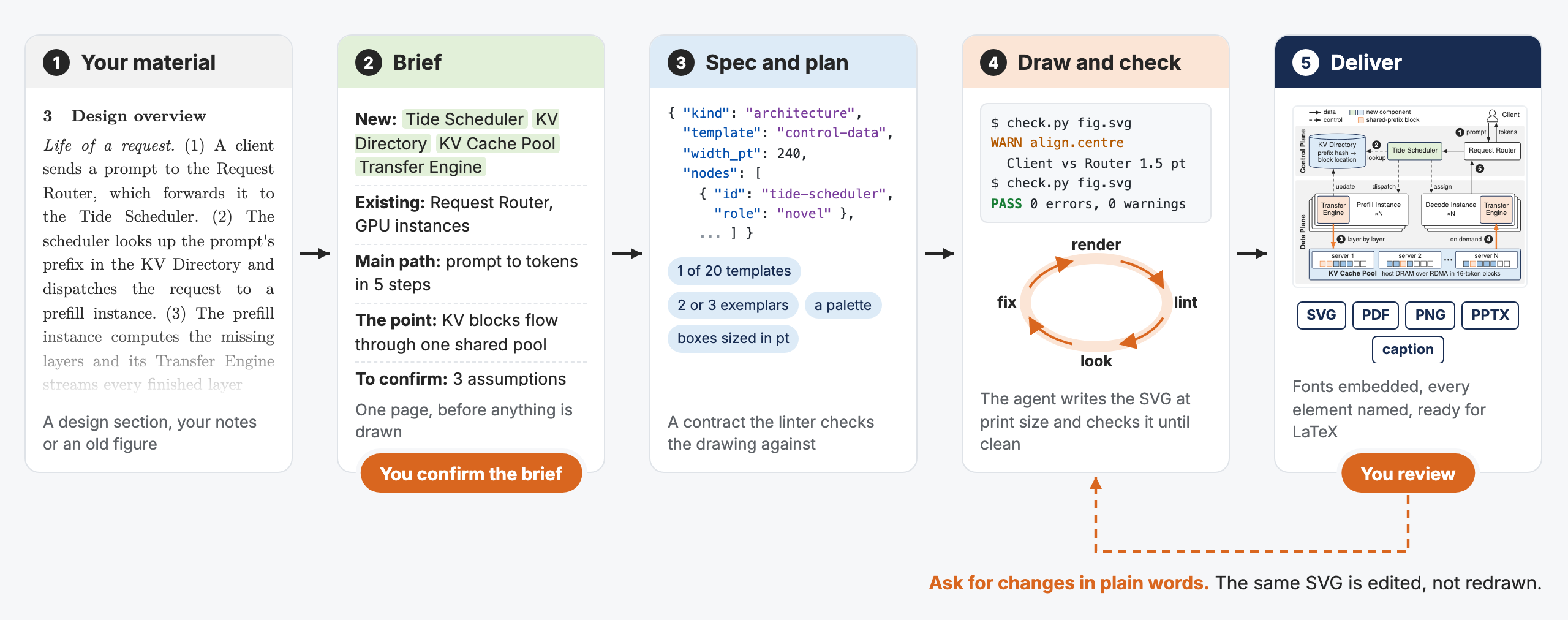
FigGenie is an AI-agent skill for drawing camera-ready figures for technical papers. Give the agent your system description, mechanism, existing figure, or other source material, and it guides you through a brief, drawing, rendering, linting, visual review, and revision workflow.
Unlike a bitmap image generator, FigGenie creates editable vector graphics. Its primary deliverable is an SVG with embedded fonts and named elements. It can also produce a figure-sized PDF for LaTeX, a PNG preview, a draft caption, and, when requested, an editable PowerPoint deck.
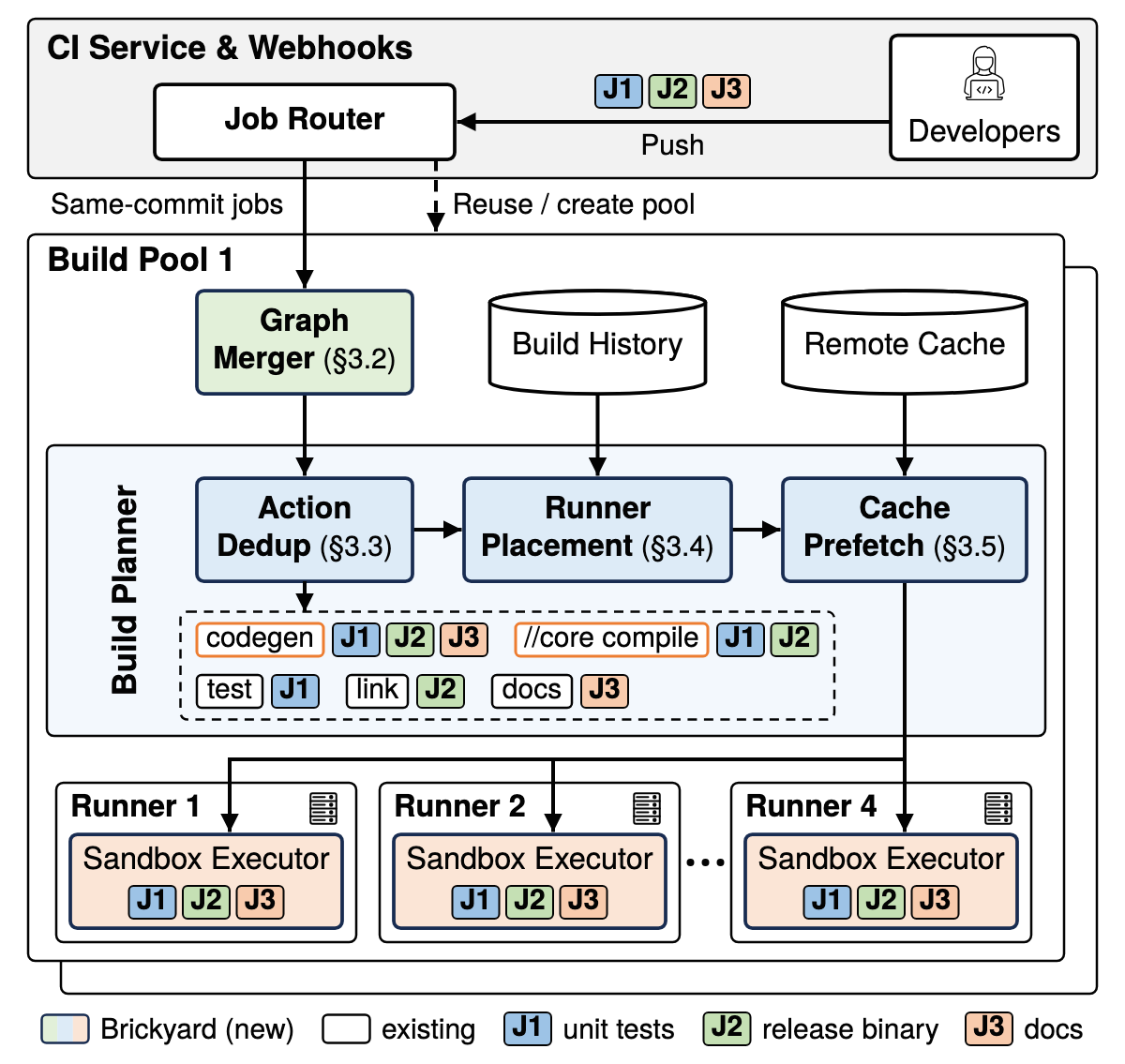
The project is currently designed around figures found in systems research. Its rules were derived from a corpus of 12,577 figures from 1,113 OSDI, NSDI, SOSP, and ASPLOS papers published from 2023 through 2026. The maintainers manually rated 2,041 figures and distilled the findings into 20 architecture layouts, five mechanism families, 21 palettes, 485 annotated exemplars, and 2,853 reusable parts.
Key features
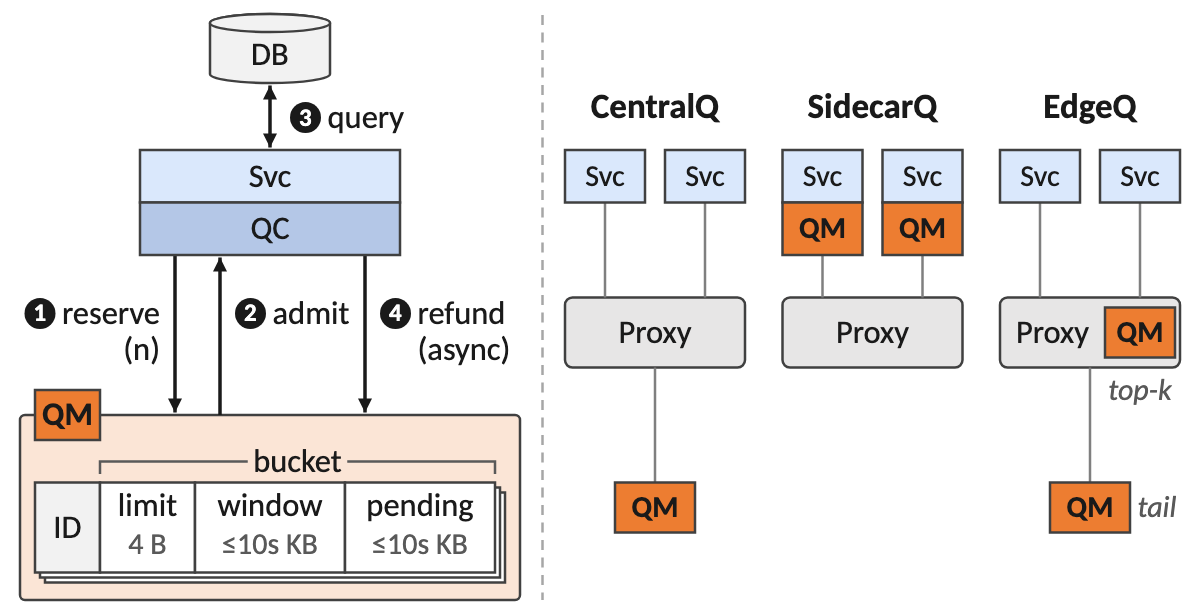
- Architecture diagrams: Choose from 20 layout templates for presenting components, control flow, data flow, execution stages, and related system structures.
- Mechanism figures: Create comparison, evolution, logic, walkthrough, and anatomy figures.
- Editable vector output: Open the resulting SVG in Illustrator or another compatible vector editor and continue editing individual elements.
- Paper-ready PDF: Export a PDF cropped to the figure's dimensions for inclusion in LaTeX documents.
- Editable PowerPoint: Request a PPTX in which primitives become native shapes, labels remain live text, and groups retain names based on specification IDs.
- Formula support: Include vector TeX formulas with the optional Node.js and MathJax setup.
- Multilingual labels: Use Chinese and other CJK text in addition to Latin text.
- Mixed content: Combine vector elements with icons, screenshots, photos, or other bitmaps.
- Automated checking: FigGenie renders and measures the figure in headless Chromium, runs a linter, and visually reviews the result after edits.
- Print-scale design: Figures are drawn in points for a 240-point paper column so labels remain readable at publication size.
Before you install
You need an AI agent that can load skills, execute shell commands, and inspect a rendered PNG. FigGenie directly supports installation as a Claude Code plugin and can be loaded as a standard Agent Skill by Codex and compatible agents.
The required local dependencies are:
- Python 3
- Playwright and a headless Chromium installation
- The Python packages
lxml,pillow,playwright, andfonttools
Node.js 18 or newer is optional and is used for TeX formulas. PowerPoint export additionally requires the optional python-pptx package. Native equations in PowerPoint also require Office's mathml2omml.xsl.
Installation option 1: Ask your agent to install FigGenie
The simplest approach is to give the repository URL to your AI agent and ask it to install the skill and configure its dependencies:
Install this skill and set up its dependencies: https://github.com/Sleepy-Avacado/FigGenieAfter installation, verify that the agent can find the skill, execute its scripts, launch Chromium in headless mode, and inspect PNG previews.
Installation option 2: Install the Claude Code plugin
In Claude Code, add the FigGenie marketplace and then install the plugin:
/plugin marketplace add Sleepy-Avacado/FigGenie
/plugin install figgenie@figgenie
Once the plugin is active, you can ask Claude Code to create, critique, revise, or redraw a paper figure.
Installation option 3: Install it as an Agent Skill
FigGenie is a regular Agent Skill containing a SKILL.md file, scripts, and reference material. Clone the repository and link its skill directory into your agent's skill location:
git clone https://github.com/Sleepy-Avacado/FigGenie.git
mkdir -p ~/.agents/skills
ln -s "$PWD/FigGenie/skills/figgenie-paper-diagram" ~/.agents/skills/figgenie-paper-diagram
Older Codex versions read skills from ~/.codex/skills. If your installation does not discover the skill under ~/.agents/skills, place or link it in the older directory instead.
Install the required rendering dependencies
pip install lxml pillow playwright fonttools
playwright install chromium
These packages provide XML processing, image handling, font tooling, browser automation, rendering, and linting support.
Enable optional PowerPoint export
pip install python-pptxInstall Node.js 18 or newer if your figures need TeX formulas. According to the project documentation, MathJax installs itself on first use.
Create your first figure
FigGenie works through conversation rather than a fixed command-line drawing syntax. Start by telling the agent what the figure must communicate, where it will appear, and which deliverables you need.
For example, you can request an architecture figure with a prompt like this:
Create a paper-ready architecture figure for this system description.
Show the control plane above the data plane, distinguish request flow from data transfer, and keep labels readable in a single paper column.
Deliver SVG, PDF, PNG preview, and a caption draft.

System description:
[Paste your description here]
The agent should prepare a brief before drawing. Review that brief carefully because it establishes the intended message, visual hierarchy, components, relationships, and output requirements.
- Provide the source material. Paste a paragraph, structured notes, component list, mechanism description, or an existing figure that needs improvement.
- Review the brief. Confirm what the figure should communicate and which details should be emphasized or omitted.
- Confirm the plan. Let the agent select an appropriate architecture template or mechanism family.
- Generate the drawing. FigGenie builds the vector figure according to the confirmed specification.
- Let the checks run. The agent renders the figure, lints its geometry, inspects the preview, and fixes detected issues.
- Review the deliverables. Examine the SVG or PNG preview and request changes in ordinary language.
Choose the right figure type
Architecture figures
Use an architecture figure when readers need to understand major components and their relationships. State the desired hierarchy and important flows explicitly. For example:
Draw an architecture figure from the description below.
Group components into client, control-plane, and worker layers.
Show synchronous requests with solid arrows and background updates with dashed arrows.
Emphasize the scheduler and shared cache.
Use a 240 pt single-column layout.
Do not overload the prompt with every implementation detail. Identify the concepts that readers must understand immediately and allow secondary details to remain visually subordinate.
Mechanism figures
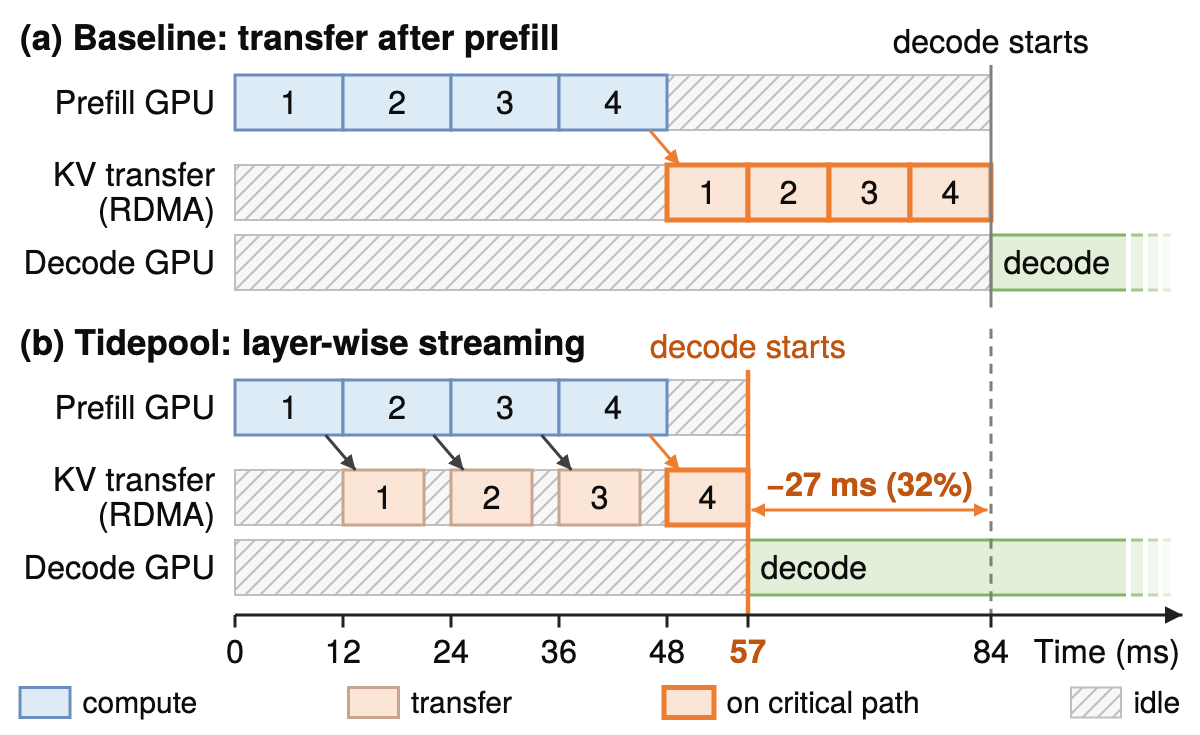
Use a mechanism figure to explain behavior over time, compare alternatives, present a sequence, expose internal anatomy, or walk through a process. FigGenie provides five mechanism families: comparison, evolution, logic, walkthrough, and anatomy.
A comparison request could look like this:
Create a comparison mechanism figure showing the baseline on the left and the proposed approach on the right.
Use the same timeline scale in both panels.
Highlight idle periods and mark when the final stage can begin.
Include the exact values from the data below and draft a concise caption.
Because the README's gallery uses invented systems and values, treat gallery figures as demonstrations of style and structure rather than factual sources for your own paper.
Revise a figure in plain language
After reviewing the preview, describe changes in concrete terms. You do not need to manually edit the underlying SVG for every revision.
Make the scheduler the primary visual focus.
Reduce the prominence of the monitoring path.
Increase the smallest label size.
Align the worker boxes and shorten crossing arrows.
Keep the final figure within a 240 pt column.
Render and lint it again after the edit.
FigGenie's workflow is designed to return to the drawing stage after a revision request. Rendering, linting, visual inspection, and correction should be repeated after each meaningful edit.
Export and edit the results
SVG
The SVG is the main editable vector artifact. Fonts are embedded, and elements are named so they can be identified in compatible editors. Use it when you expect to refine spacing, colors, labels, or geometry in a vector application.
The PDF is cropped to the figure's size and intended for paper workflows such as LaTeX. Check it at its actual publication dimensions rather than judging readability only while zoomed in.
PNG and caption draft
The PNG provides a convenient preview for inspection and collaboration. The caption draft gives you a starting point, but it should still be checked against the terminology, claims, and conventions in your manuscript.
PowerPoint
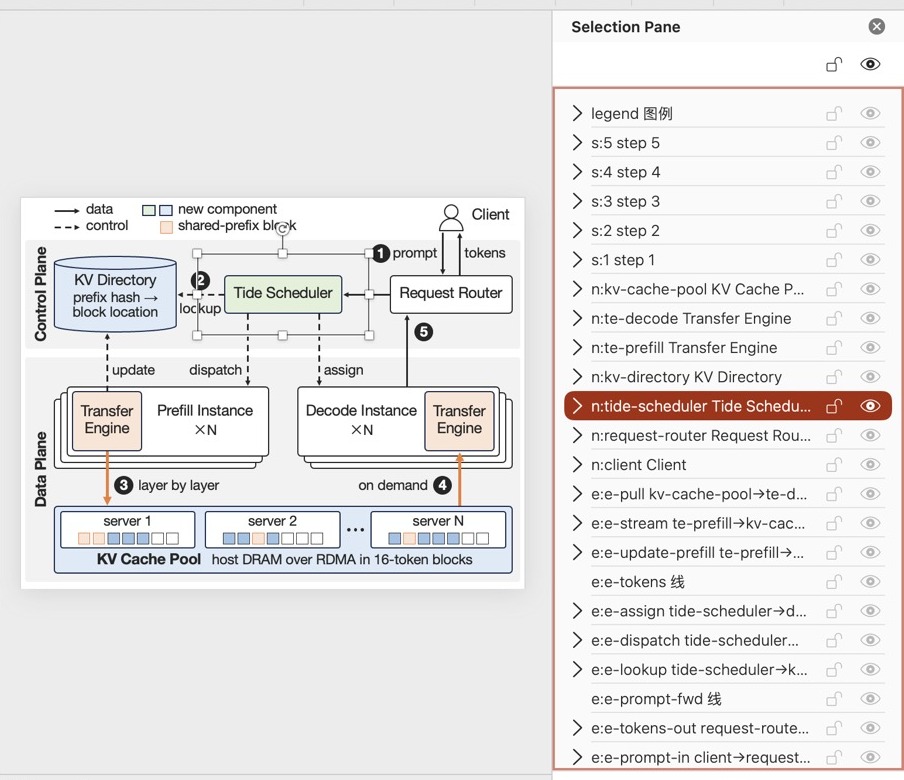
Request PPTX explicitly when you need to edit the figure in PowerPoint. FigGenie converts primitives into native shapes at the same coordinates as the SVG. Labels remain live text, and groups are named using their element IDs.
Also export this figure as an editable PowerPoint deck.
Keep boxes as native shapes, labels as live text, and preserve named groups.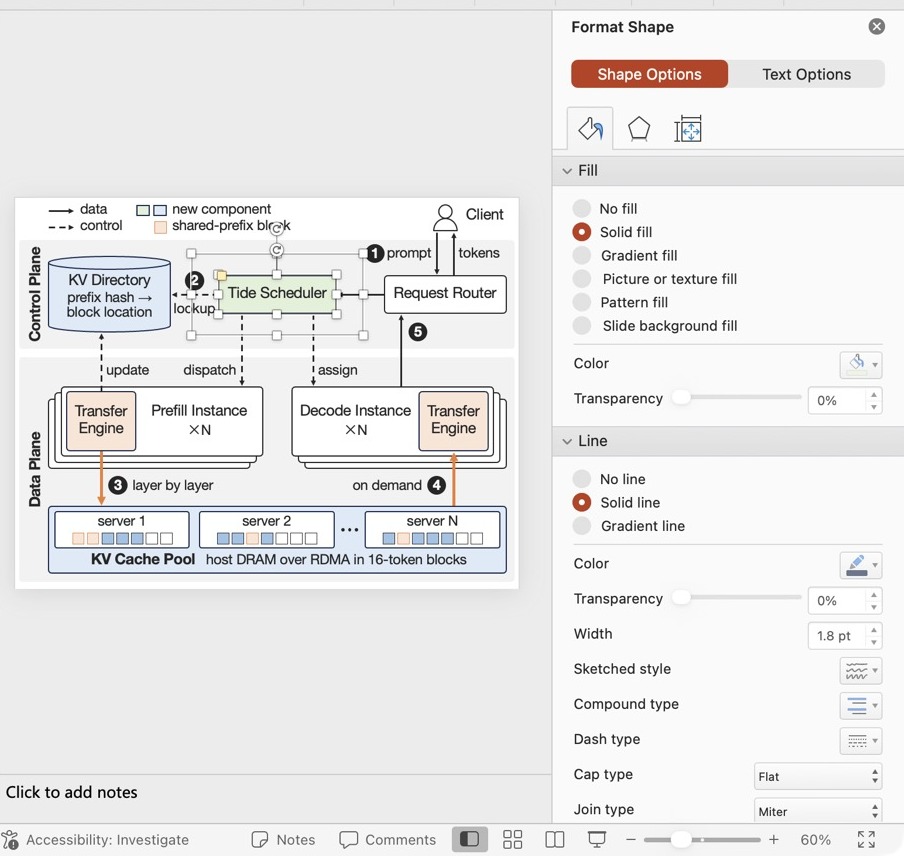
Advanced tips
Design for the final print size
Specify whether the figure will occupy one column or a wider layout. FigGenie's default principles target a 240-point column, but you should still inspect the exported PDF at the size used in the paper. Pay particular attention to the smallest labels, arrow annotations, legends, and formula subscripts.
Separate facts from presentation preferences
Give the agent exact component names, measured values, ordering constraints, and relationships. Then list visual preferences separately. This reduces the chance that a styling request will be mistaken for a system property.
Ask for formulas only when they add explanatory value
If a mechanism depends on a mathematical relationship, include the TeX expression and explain its role. Node.js 18 or newer is required for the optional MathJax-based formula workflow. Vector formulas are preferable to pasted equation screenshots when editability and print quality matter.
Plan for multilingual text early
FigGenie supports Chinese and other CJK labels. Tell the agent which language or languages the final figure must use before drawing so it can account for text width and line wrapping during layout.
Use bitmaps selectively
Screenshots and photos can be placed inside a figure, but the surrounding diagram remains most editable when boxes, connectors, labels, and formulas are represented as vector elements. Provide sufficiently high-resolution source images for any bitmap content.
Request critiques and redraws
You can use FigGenie on an existing figure instead of starting from prose. Ask the agent to critique its hierarchy, spacing, readability, and structure, then request a redraw that preserves the factual content. Confirm any proposed simplification before accepting it.
Keep automated validation in the loop
Do not treat the first render as the final result. Ask the agent to rerun rendering and linting after edits. Automated measurements can identify geometry problems, while visual inspection helps catch confusing emphasis, awkward routes, or labels that technically fit but remain difficult to read.
Know the current limitations
An interactive editor is listed on the roadmap and is not currently available. Styles for top AI venues such as NeurIPS, ICML, ICLR, CVPR, and ACL, along with support for editors such as draw.io and OmniGraffle, are also roadmap items rather than current features.
Licensing and attribution
FigGenie's code and documentation are released under the MIT License. Figures and reusable parts taken from published papers remain the property of their authors, and bundled fonts retain their own licenses. Review the repository's credits, sources, and font license documentation before redistributing included assets.
Conclusion
FigGenie provides a structured way to turn research descriptions into editable, publication-oriented figures. Install it as a Claude Code plugin or Agent Skill, supply a focused description, confirm the brief, and iterate through rendering, linting, and visual review. Export SVG or PDF for paper production, and request PPTX when collaborators need native PowerPoint editing.