


What Is ReelMimic?
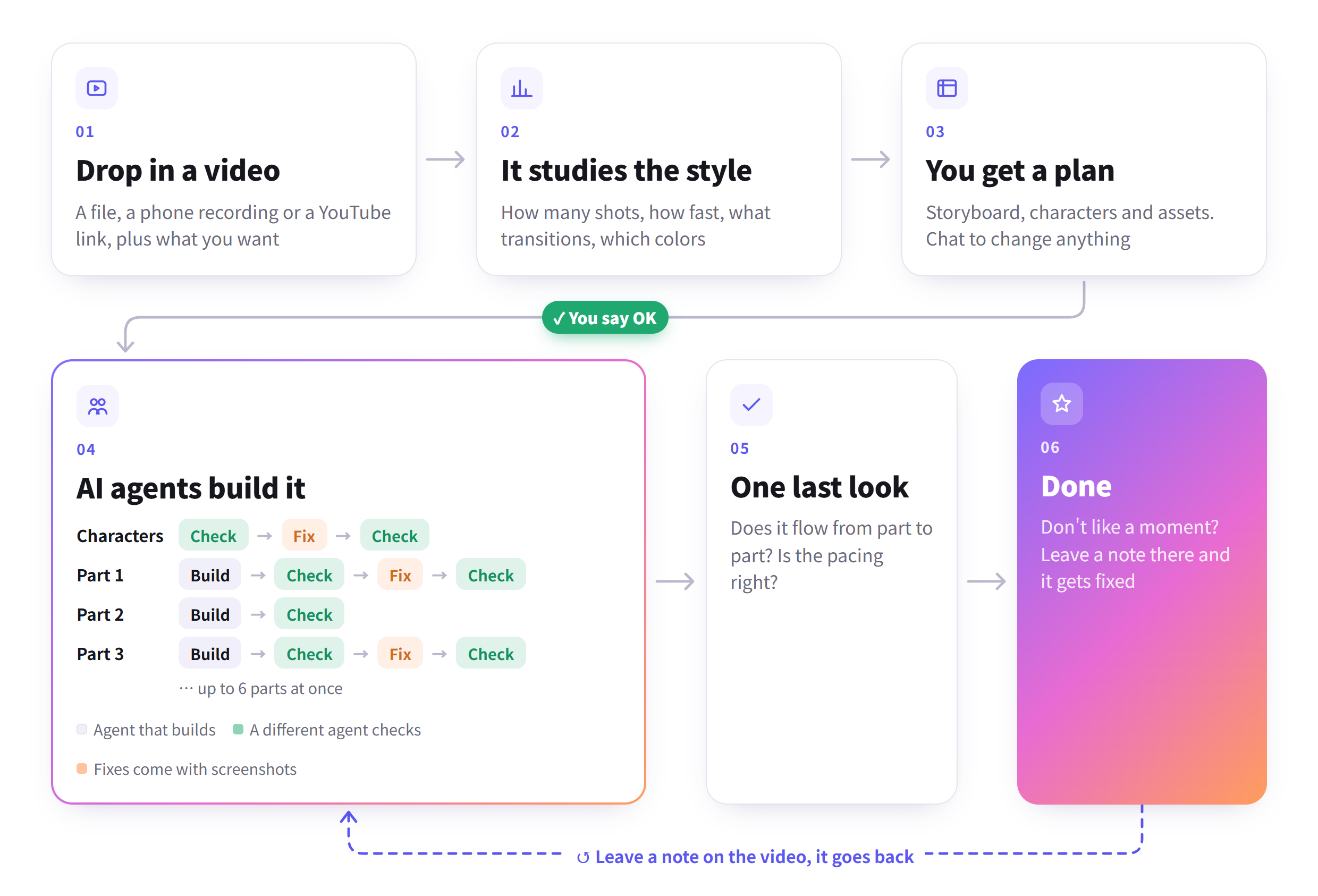
ReelMimic is an open-source tool that studies how a reference video is made and uses those techniques to produce a new, original 2D animation. You can provide a local file, a phone recording, or a YouTube link, then describe the video you want in a short brief.
The project analyzes elements such as shot count, shot duration, editing rhythm, BPM, transitions, framing, colors, and camera movement. It then presents a production plan containing the storyboard, characters, assets, and sample style frames for your approval.
ReelMimic learns the reference video's technique. It does not copy its footage, characters, logos, or other assets.


How the Production Workflow Works
After you approve a plan, ReelMimic divides production among several AI agents. Up to six agents can work on different parts of a video concurrently. Each completed shot is sent to a separate agent for review, ensuring that the agent that created a shot does not grade its own work.
If a reviewer finds a problem, the shot goes back for correction. Fixes include before-and-after screenshots that the reviewer can inspect. The interface also exposes agent activity, commands, inspected frames, and a complete log.
Key Features
- Reference analysis: Examines timing, transitions, colors, framing, camera movement, and related stylistic choices.
- Plan-first workflow: Lets you review and discuss the storyboard, characters, assets, and style frames before rendering begins.
- Parallel AI agents: Assigns different parts of production to multiple agents.
- Independent review: Sends each shot to an agent other than its creator for quality checking.
- Evidence-based fixes: Records before-and-after screenshots for corrections.
- Time-based feedback: Lets you scrub to a specific second in the finished video and attach a note.
- Markdown-based styles: Represents each style with a Markdown file rather than requiring code.
- Multilingual interface: Supports English, Traditional Chinese, and Simplified Chinese.
Supported Output Styles and Limitations
ReelMimic currently focuses on 2D animation. It does not generate live-action footage of real people.
Its seven drawing engines cover:
- Vector and motion graphics, built on HyperFrames
- Hand-painted watercolor, built on painted-animation
- Crayon picture-book art
- Pixel art
- Paper cut-out stop-motion
- Whiteboard doodles
- Anime cel animation
The README notes that the five newer engines have received less real-world use than the vector and watercolor engines. If a reference does not match a known style, ReelMimic selects the closest engine and prepares a proposal for a new style.
A 30-to-60-second video usually takes approximately 1 to 3.5 hours after plan approval. Watercolor and crayon output is generally slower because frames are painted with brushes.
Prerequisites
Install and configure the following tools before setting up ReelMimic:
- Node.js 22.18 or newer
- Python 3.10 or newer
- FFmpeg
- Google Chrome
- Either Claude Code or Codex CLI, with an authenticated account
The project has been tested primarily on Windows. macOS and Linux should also work, although they have received less testing.
Install ReelMimic
Install on macOS or Linux
Clone the repository, enter its directory, run the installer, and start the application:
git clone https://github.com/edenfunf/reelmimic.git && cd reelmimic
./install.sh
./start.sh
Install on Windows
Clone or download the repository. Inside the project folder, double-click install.bat, then double-click start.bat.
The installation script checks the required software and reports anything missing. To repeat that diagnostic check later, run:
cd app
npm run doctor
Claude Code automatically discovers the skills included in the repository. Codex reads the supplied AGENTS.md file, so neither option requires an additional ReelMimic-specific agent setup.
Open the Web Interface
After starting ReelMimic, open http://localhost:4318 in your browser. Port 4318 is the default and can be changed through ReelMimic's settings.
Create Your First Video
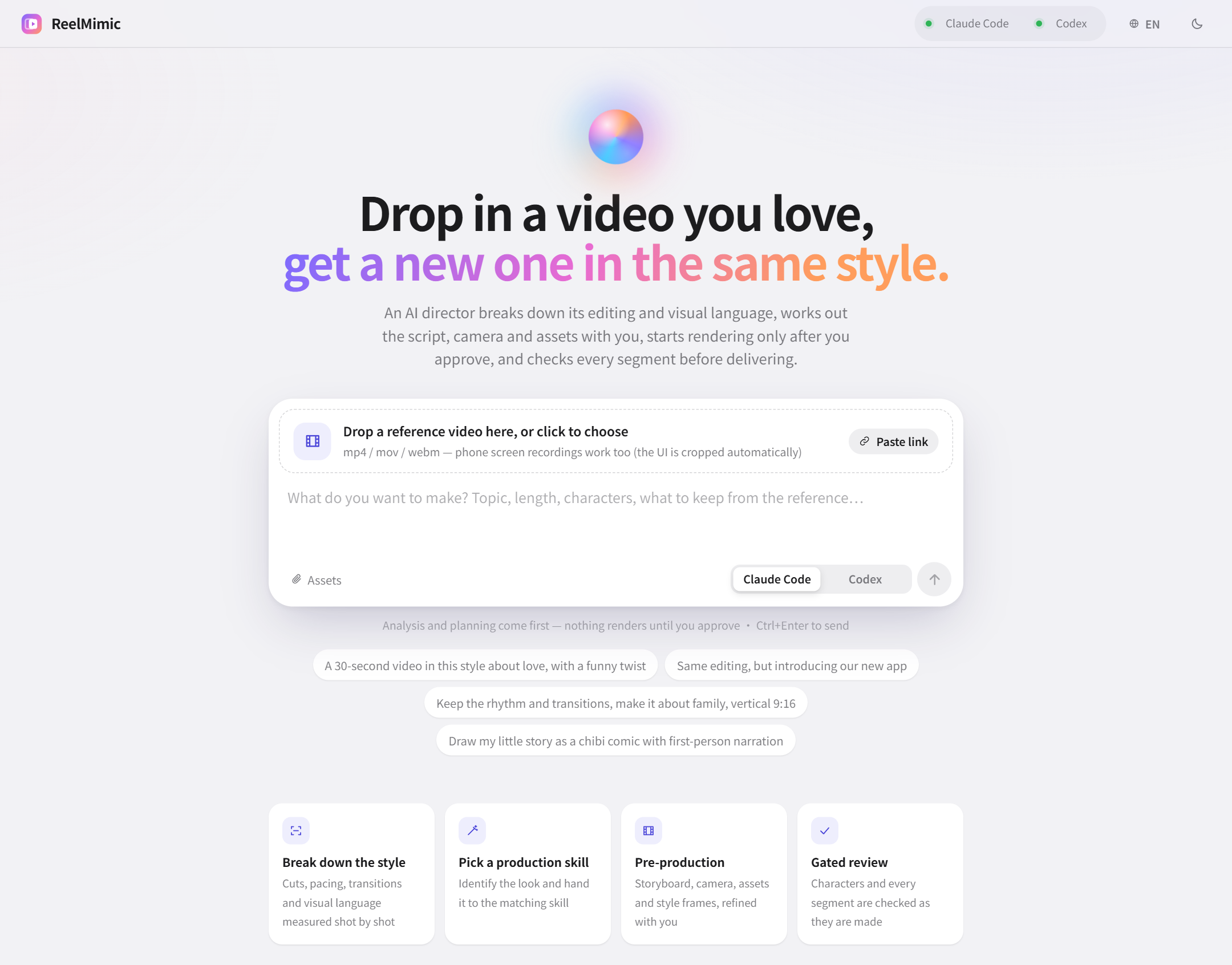
- Add a reference. Drop a video onto the home page or paste a supported link.
- Write a brief. Describe the original video you want ReelMimic to create. The README's intended workflow uses a concise request rather than a detailed technical specification.
- Select an AI tool. Choose your authenticated Claude Code or Codex installation.
- Wait for analysis. ReelMimic breaks down the reference and prepares a proposed production plan.
- Review the plan. Inspect the storyboard, characters, assets, and style frames before allowing production to start.
- Request changes. Use the chat panel to revise the proposal. You can also provide screenshots as input.
- Supply requested material. If the plan asks for something such as lyrics, add it or choose to skip it.
- Start production. Select Approve and start when the plan is ready.
Example Brief
A simple request can identify the subject and desired result while allowing the reference to provide the production language:
Create an original 30-second animated story about a cat avoiding bath time, using the reference video's pacing and framing.This should be treated as a starting point. The review stage is where you can clarify characters, assets, visual direction, or story details before committing to the longer production process.
Monitor and Review Production
Open the Production line tab after rendering starts. It shows the status of each character and video segment, along with review screenshots. You can inspect what agents ran, which frames they examined, and the full production log.
If your Claude Code or Codex account reaches a usage limit, the job pauses. It can resume from where it stopped after access becomes available again.
Comment on the Finished Video
Once the video is complete, scrub to any moment that needs attention and enter a note at that timestamp. You can collect several notes and submit them together instead of restarting the entire creative process after every observation.
Configure Keys, Paths, and Concurrency
ReelMimic stores API keys and selected tool paths in:
~/.reelmimic/secrets.jsonThis file is outside the repository, helping prevent secrets from being committed with the project. Use the repository's secrets.example.json as the format reference.
Available Settings
YATING_KEY: Enables Yating Taiwanese Mandarin narration voices.PIXABAY_KEYandFREESOUND_KEY: Provide additional sources for permitted images, music, and sound effects. These are optional because Openverse works without a key.FFMPEG_DIR: Specifies FFmpeg's location when it is not available on your system path.CHROME_PATH: Points ReelMimic to the Chrome executable.CODEX_BIN: Specifies the Codex executable.PYTHON: Specifies the Python executable.CODEX_SANDBOX: Controls Codex sandboxing. The default isdanger-full-access. The README warns thatworkspace-writeblocks the Chrome renderer.BUILDERS: Controls how many agents work concurrently on one video. The default is six.MAX_AGENTS: Limits concurrent agents across all projects. The default is twelve.PORT: Changes the web port from its default of4318.
Advanced Workflow Tips
Refine the Plan Before Rendering
Rendering can take hours, so resolve obvious story, character, asset, and style issues during planning. Use the adjacent chat and screenshots to communicate specific changes, then approve only when the storyboard and sample frames match your intent.
Choose Concurrency Conservatively
More agents can divide the work, but all activity counts against your Claude Code or Codex account usage. Keep the default limits initially, monitor resource and plan consumption, and adjust BUILDERS or MAX_AGENTS only when necessary.
Use Diagnostic Checks After Environment Changes
If you update Node.js, Python, FFmpeg, Chrome, Claude Code, or Codex, rerun npm run doctor from the app directory. Explicit tool paths in secrets.json can help when executables are installed but are not available through your system path.
Extend Styles Without Changing Application Code
ReelMimic defines styles through Markdown files. Consult the repository's extending documentation before adding a style, rendering engine, or another AI integration. The architecture documentation explains runtime behavior, file locations, and how AI tools connect to the system.
Respect Sources and Rights
ReelMimic logs the source, author, and license of material it finds online and flags unclear licenses. Lyrics must come from text you supply; the tool does not download commercial songs. You remain responsible for ensuring that you have the rights to use your inputs and publish the resulting video.
Conclusion
ReelMimic provides a local, review-driven workflow for turning a video's creative technique into a new 2D animation. Its plan-first process, parallel production agents, independent shot reviews, visible logs, and timestamped feedback make it more controllable than a single-pass generation workflow. Start with a short reference and clear brief, review the proposed plan carefully, and monitor account usage while the agents build and check the result.